How to Automatically Send a Survey After a Ticket is Solved in Zendesk
-
NPS and Survey

Automatically sending a survey after a ticket is marked as solved is a simple way to capture timely feedback from your customers. This guide will show you how to set up this automation using the NPS or Survey app for Zendesk.
Before you start, make sure you have:
- NPS and Survey app installed in your Zendesk account;
- Admin permissions in Zendesk to create triggers.
Step 1: Create the Zendesk Trigger
Triggers in Zendesk let you automate actions based on ticket events. In this case, we’ll create a trigger that sends your survey right after a ticket is solved.
To start, navigate to Admin Center > Object and rules > Business rules > Triggers and click Create trigger.
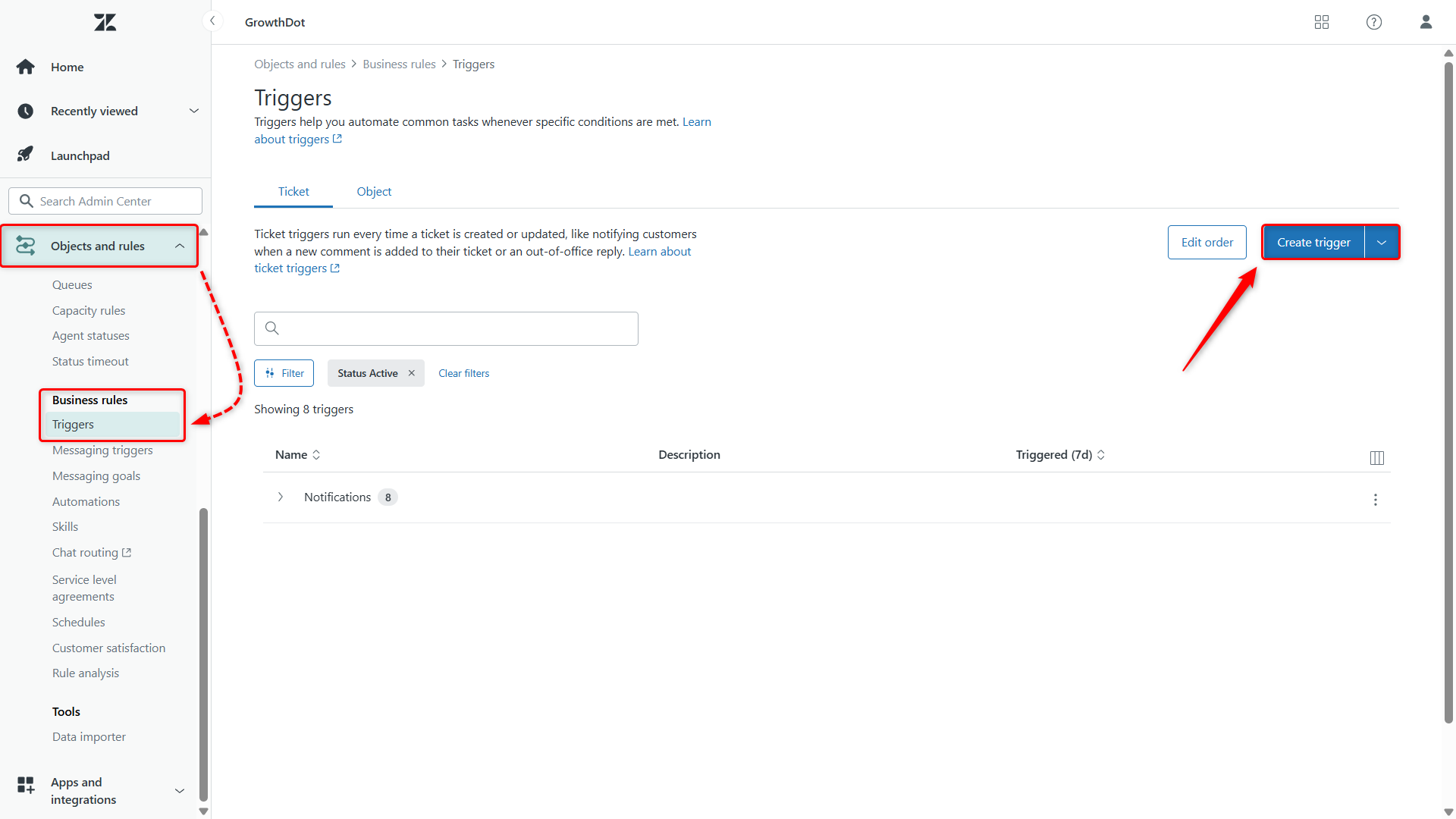
Give your trigger a clear name, e.g., “Send survey after ticket solved,” so it’s easy to identify later.
Define the Conditions
Next, set up the conditions to make sure the survey is sent only to solved tickets that haven’t already received a survey. Under Meet ALL of the following conditions, add:
- Ticket > Ticket status → Is → Solved
- Ticket > Tags → Contains none of the following →
survey_sent
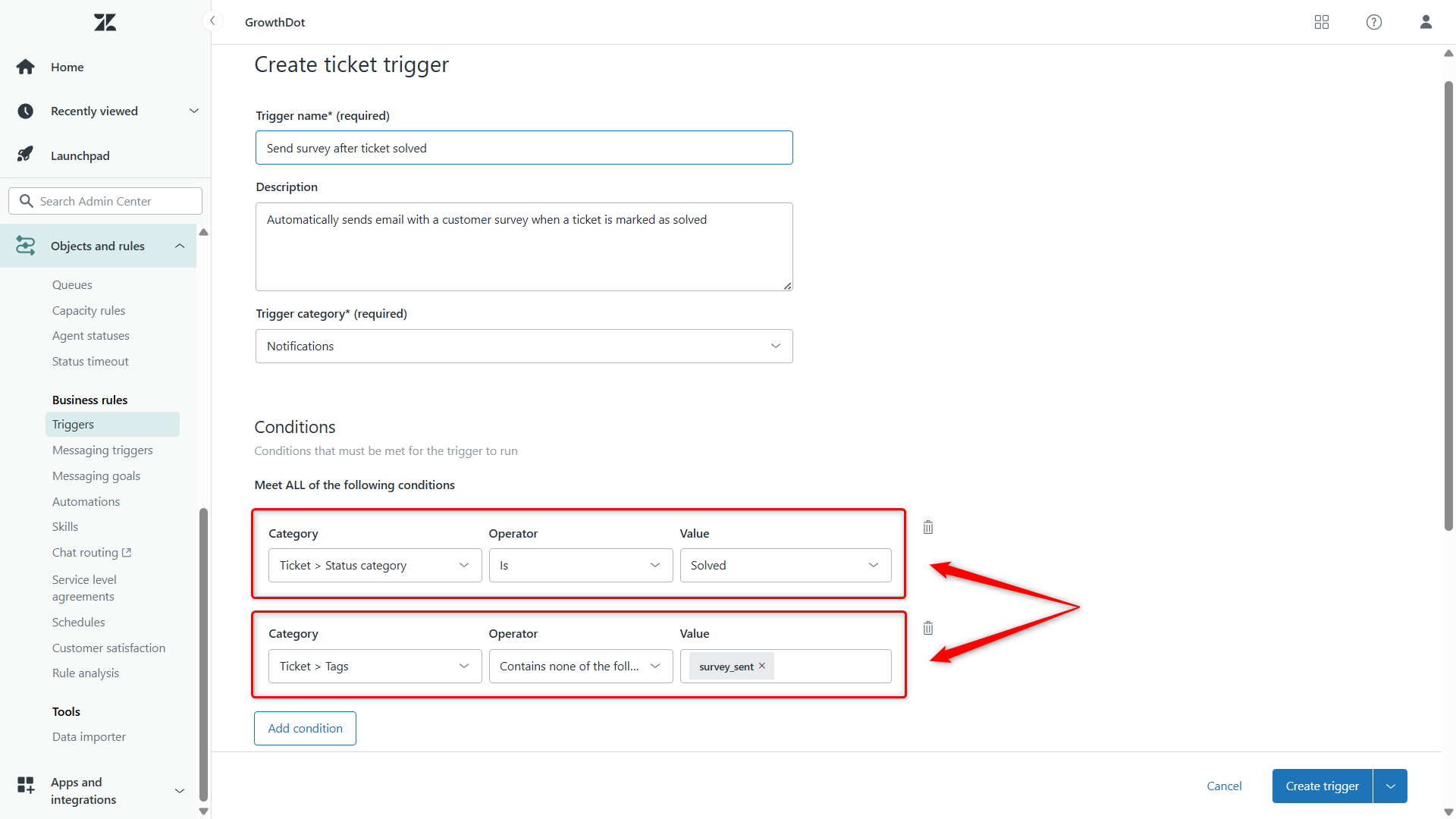
survey_sent tag prevents customers from receiving duplicate surveys.Set the Actions
Now, set up the actions to send the survey email and mark the ticket with the sent survey:
- Notify by > User email → Ticket > (requester)
- Provide your email subject and body, including instructions for completing the survey.
- Ticket > Add tags →
survey_sent
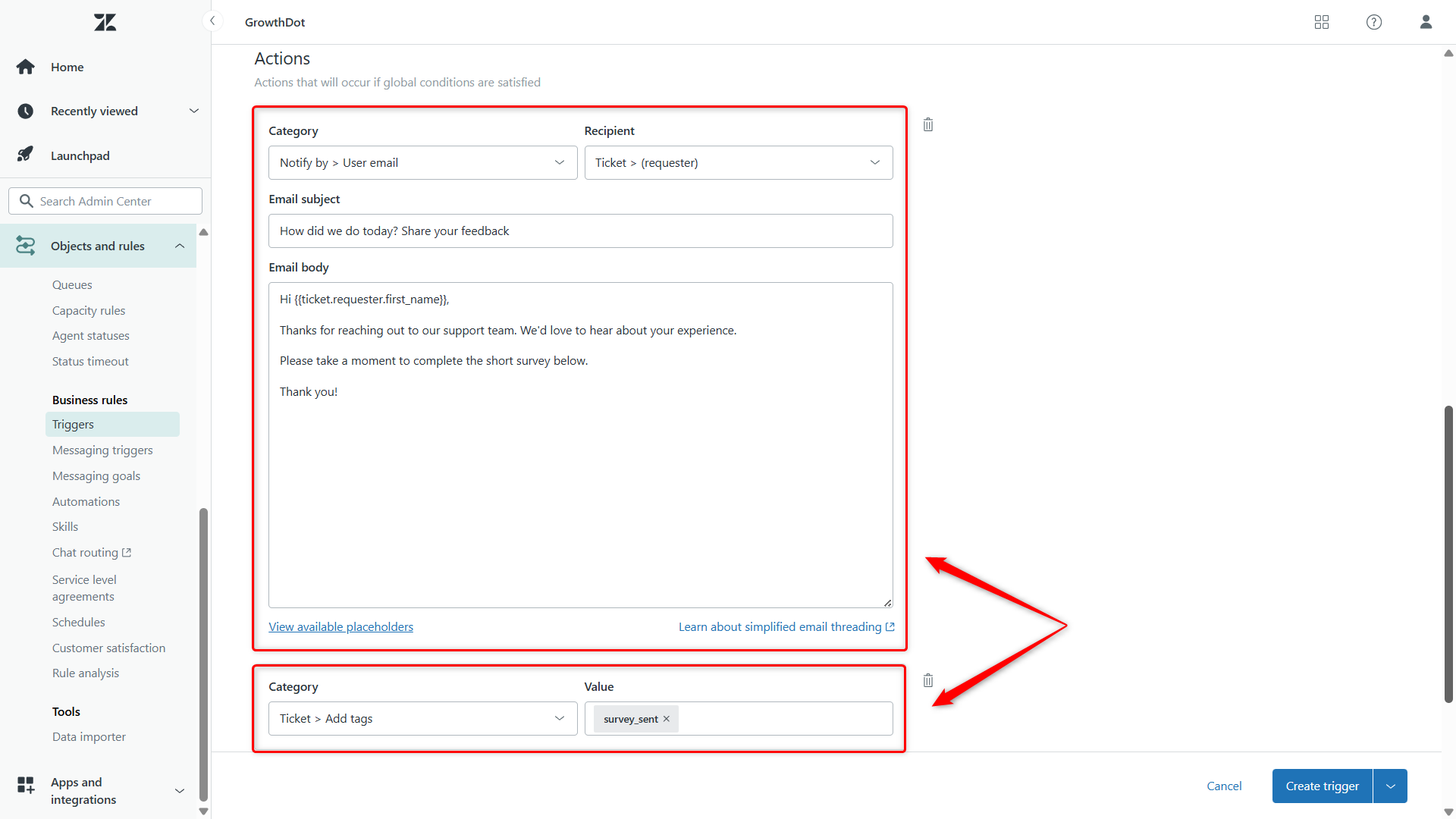
survey_sent tag ensures that even if the ticket is reopened, the survey won’t be sent again.Finally, click Create trigger to save it.
Step 2: Create Your Survey
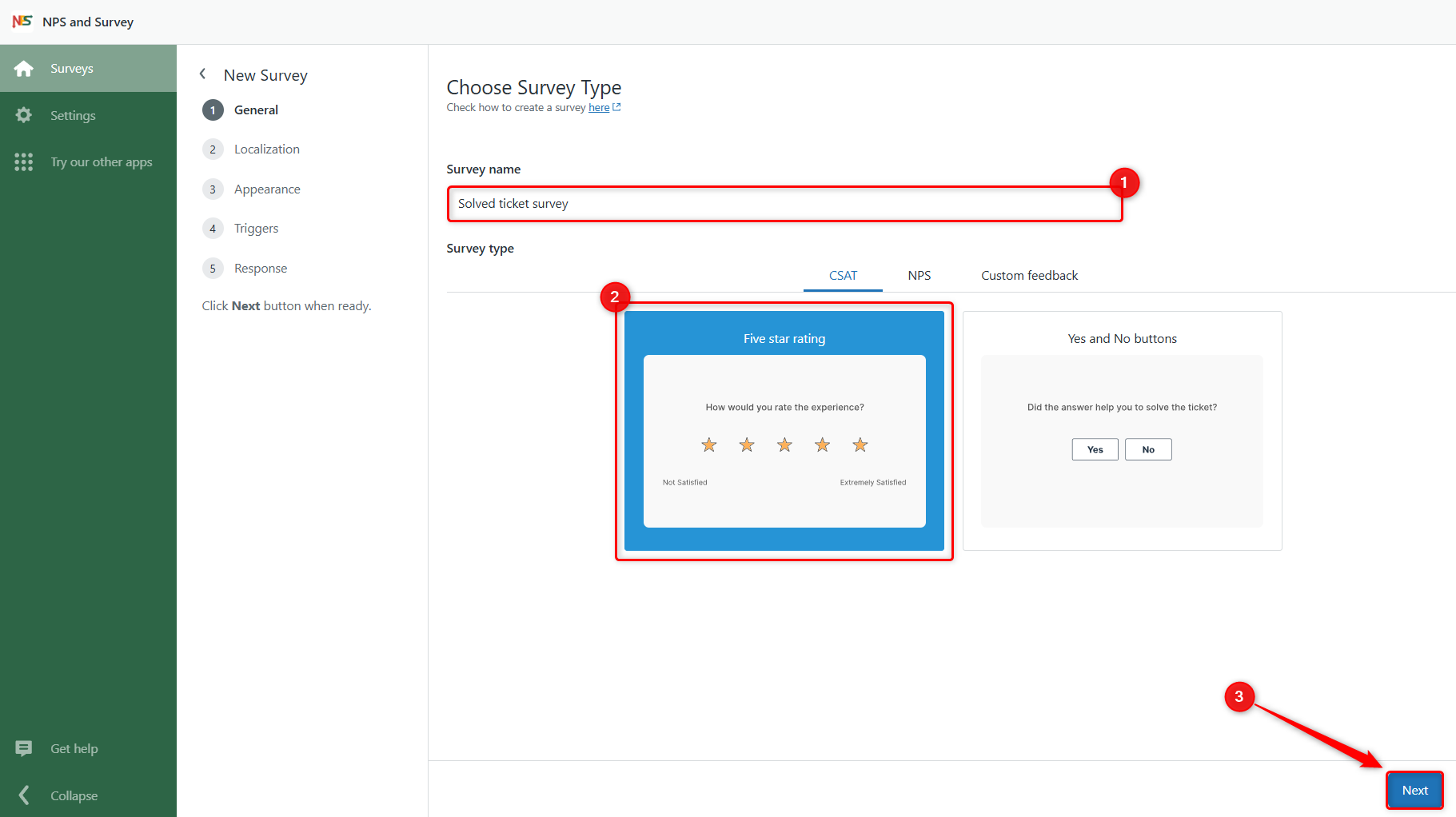
Now open the NPS and Survey app and click Create survey.
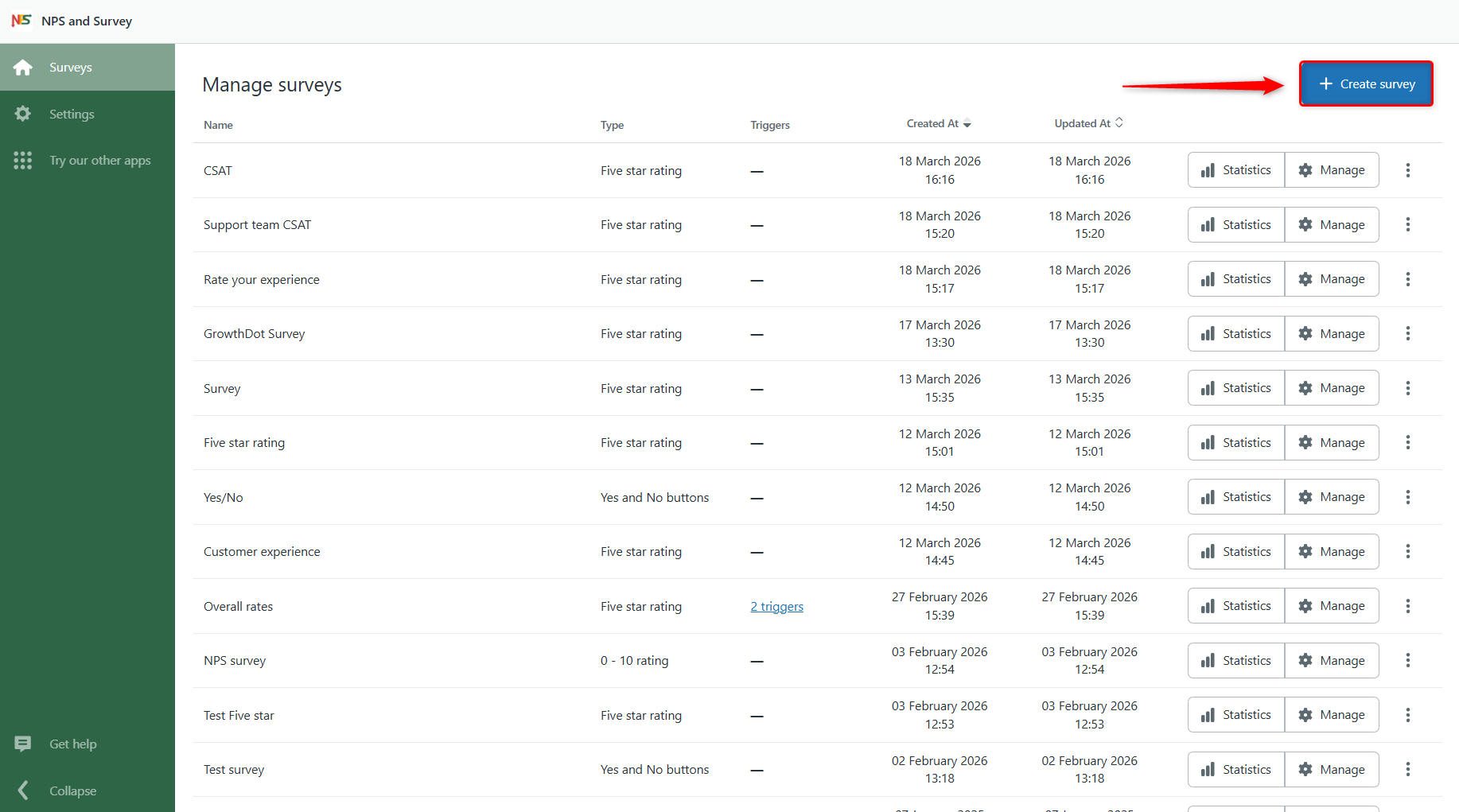
Enter a survey name, choose the survey type (CSAT, NPS, or custom feedback), and click Next.
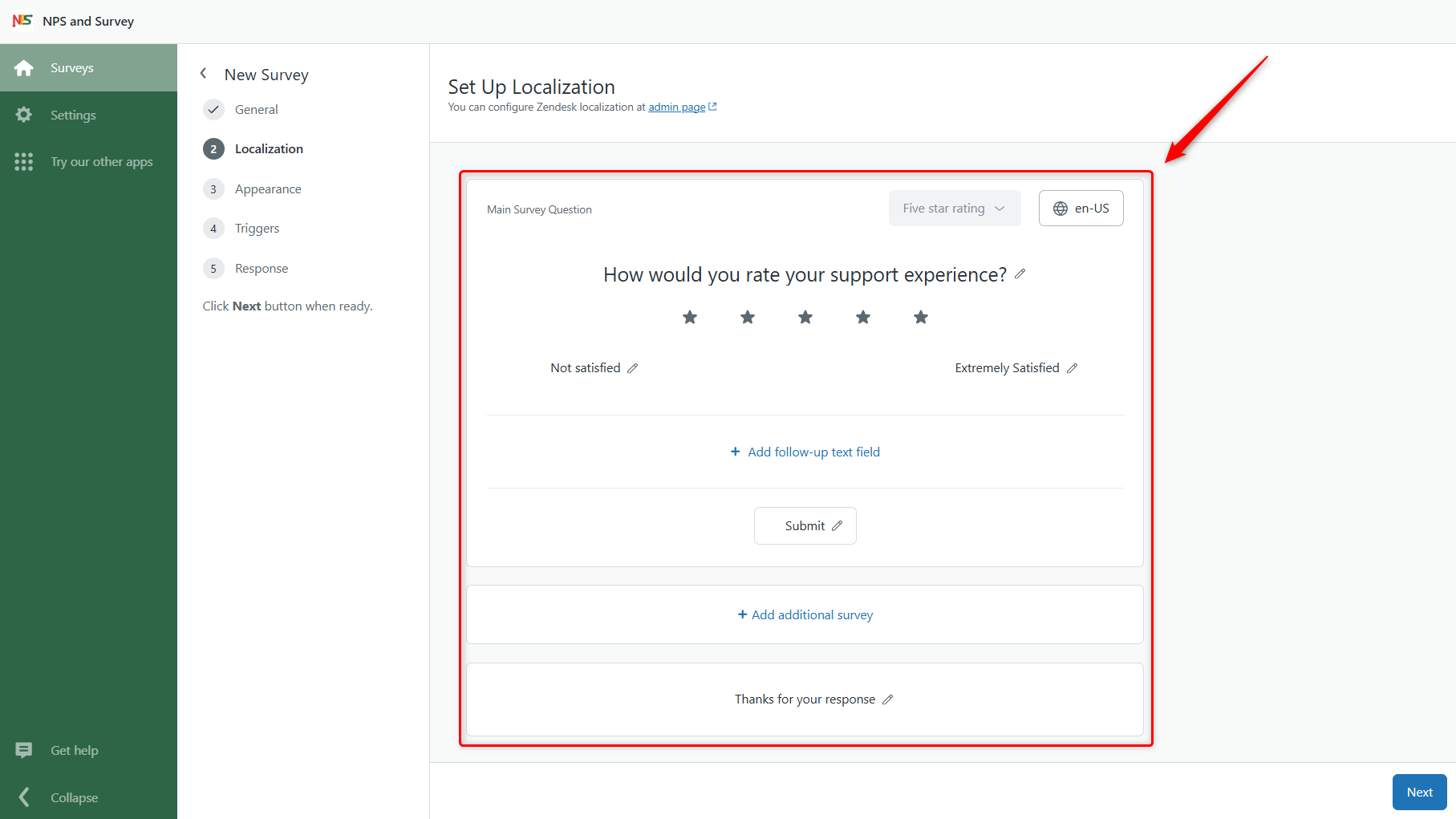
Next, configure your survey question and wording. You can customize the main question and add additional elements, such as:
- a follow-up text field when a customer does not select the highest score
- an additional question of any type to collect deeper insights
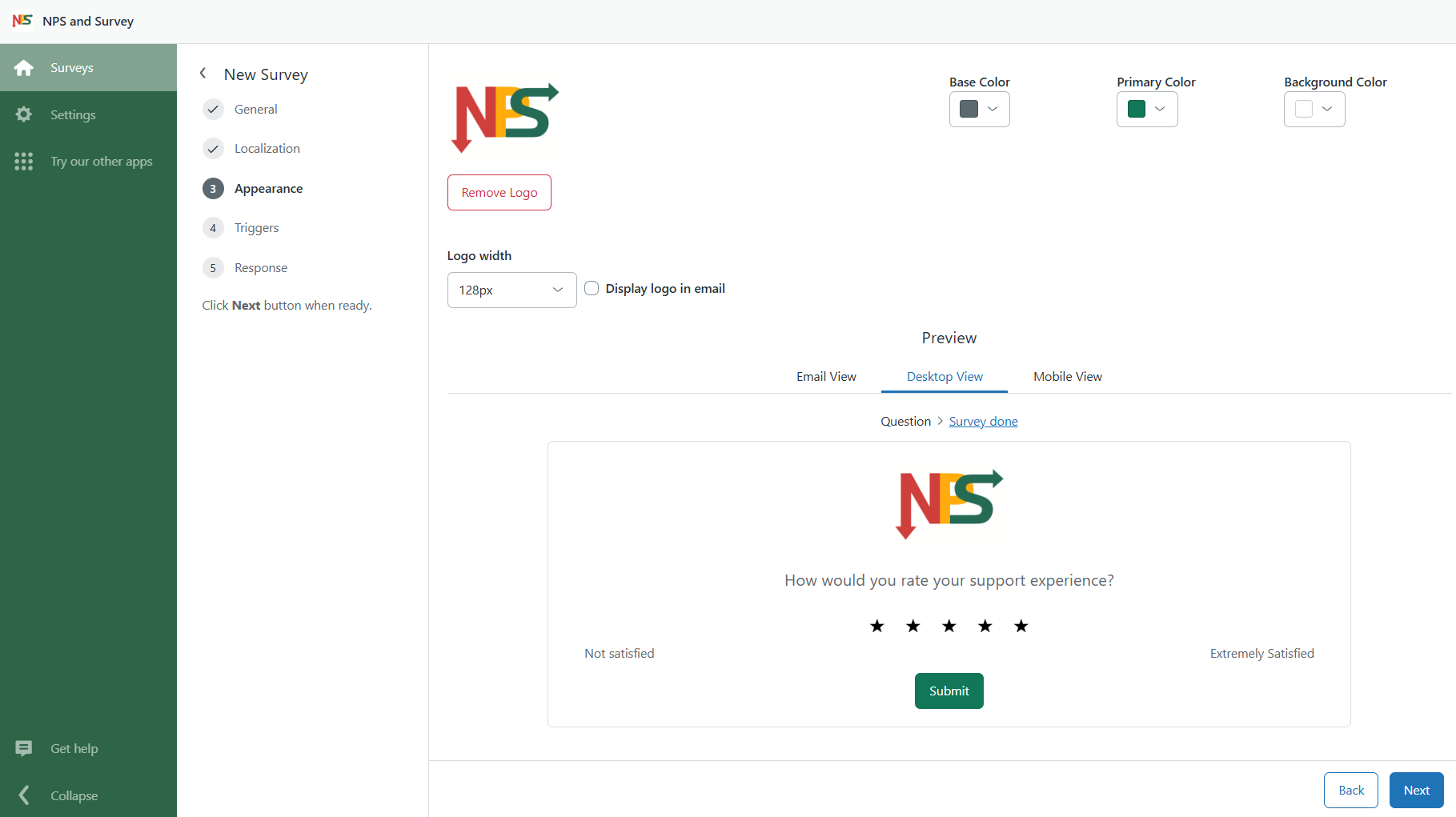
Then adjust the appearance of your survey. You can add your logo and set your brand colors so the survey matches your company’s branding.
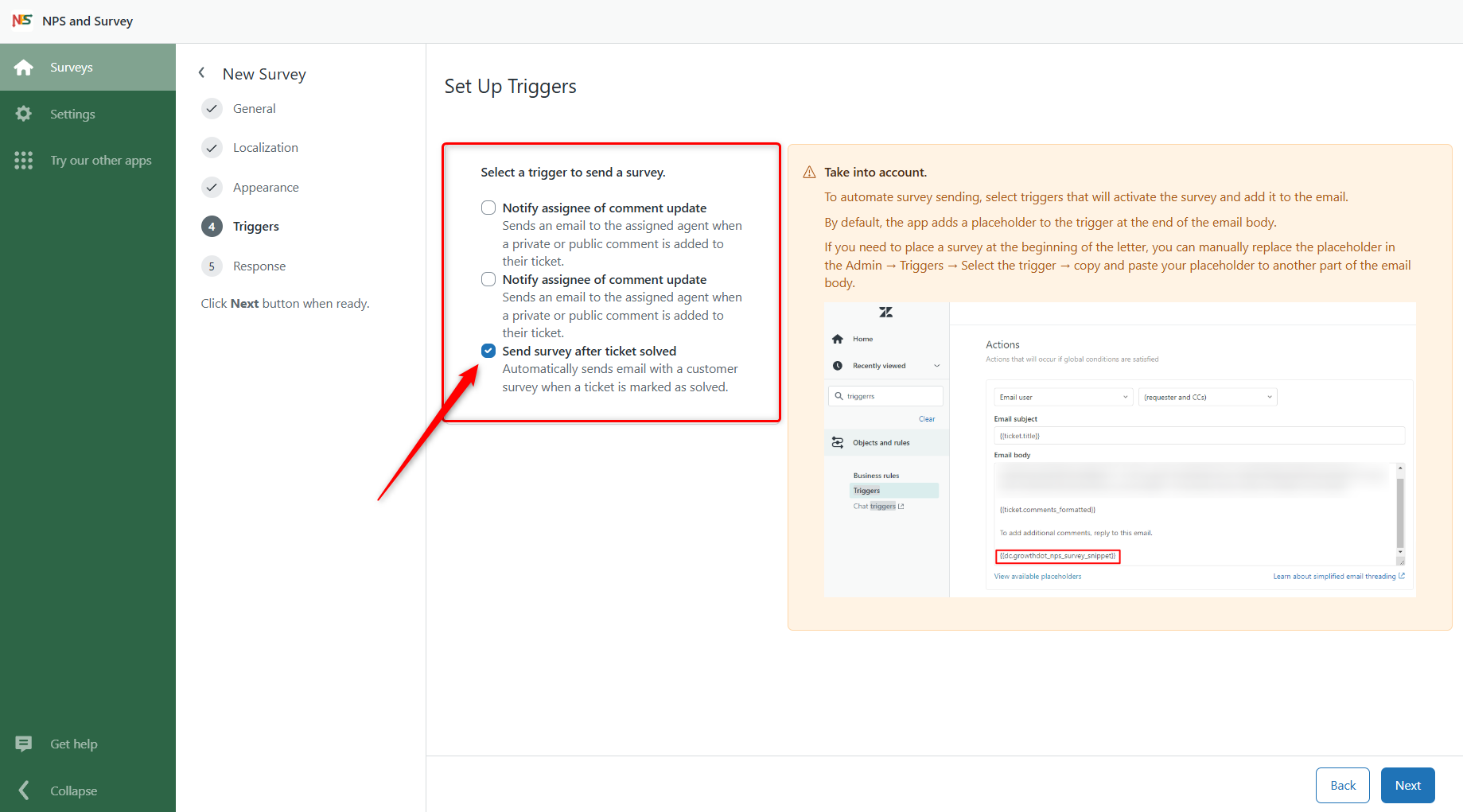
Select the Trigger for Automatic Sending
In the next step, select the trigger you created earlier. This trigger will automatically send the survey when the ticket is solved.
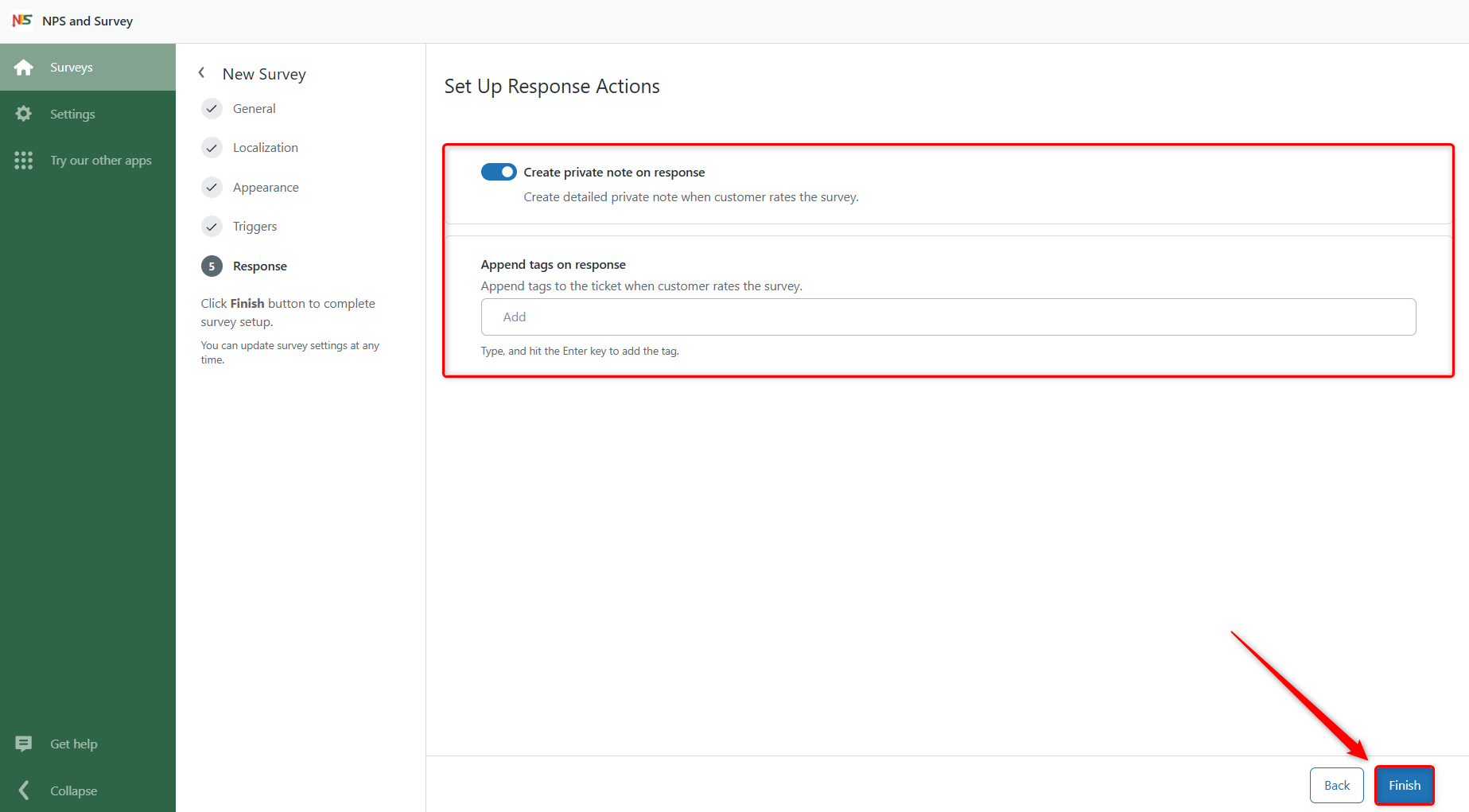
Finally, configure response actions. For example, you can create a private note with the response and add tags to the ticket for easier tracking.
When everything is ready, click Finish to activate the survey.
Step 3: Test the Survey Automation
Before using the survey with real customers, it’s a good idea to test that everything works as expected.
Create a test ticket in Zendesk and make sure the requester's email is one you can access. Then resolve the ticket by changing its status to Solved. Once the ticket is solved, the trigger should automatically send the survey email to the requester.
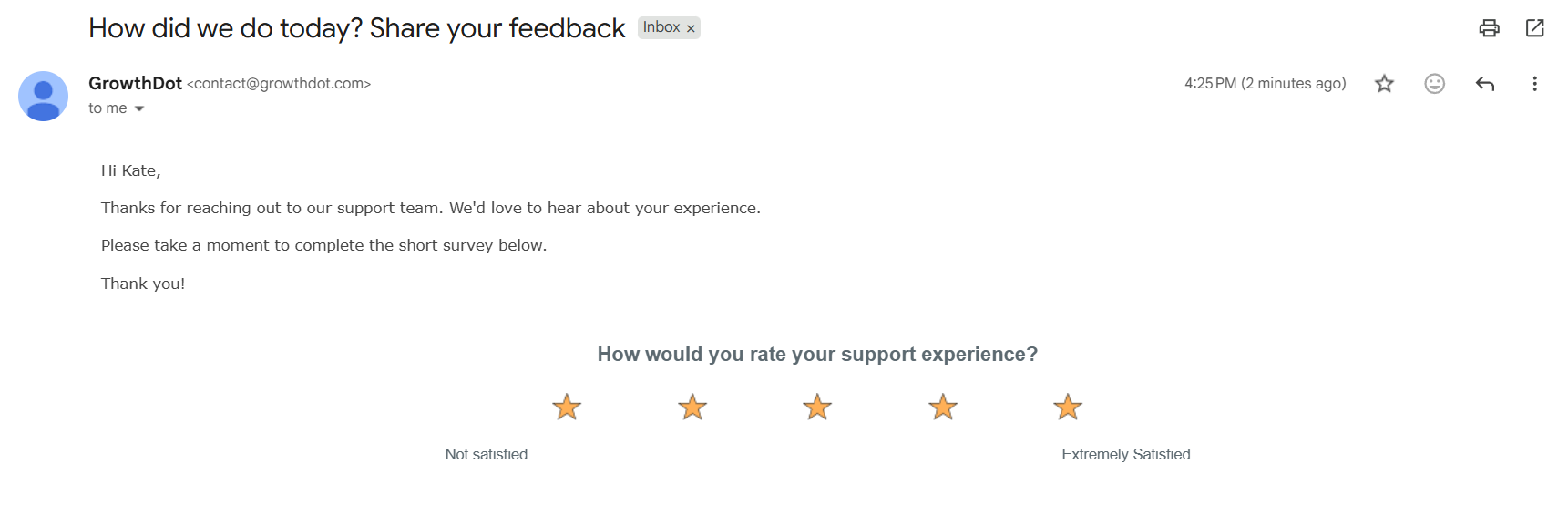
If everything works correctly, your survey automation is ready to start collecting customer feedback.