How to Set Up Brand-Specific NPS & Surveys for Multiple Zendesk Brands
-
NPS and Survey

You can send a different survey, with its own logo and questions, for each brand you manage in one Zendesk account. The NPS & Survey app sends surveys through Zendesk triggers, so every brand gets its own trigger and its own survey.
This article is for support teams and agencies that handle several brands in a single Zendesk instance and want each customer to see a survey that matches the brand they contacted.
Before you begin
Brand-specific surveys work when these conditions are met:
- All brands are managed within the same Zendesk instance.
- The NPS & Survey app is installed in that Zendesk instance.
- You can create triggers in Zendesk (admin access).
- You know which brands you want to survey and what each survey should look like, including its logo.
Step 1: Create a trigger for each brand
Each brand needs its own trigger. The example below sends the survey when a ticket is closed.
1. In Zendesk, go to Objects and rules > Business rules > Triggers and create a new trigger.
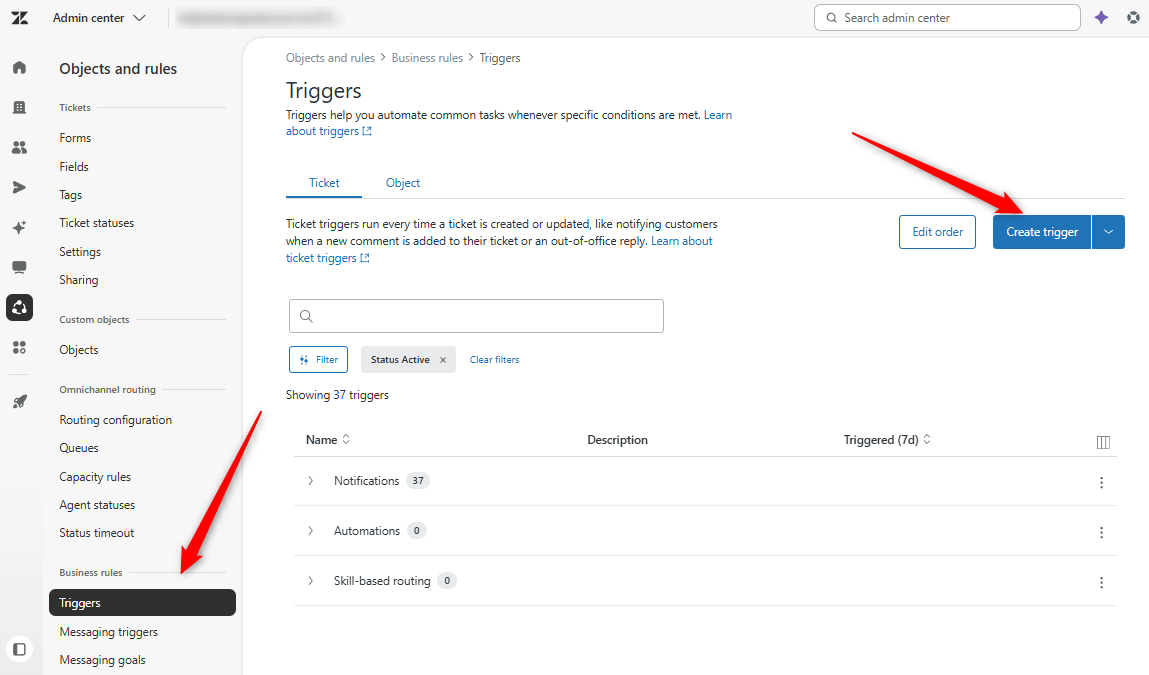
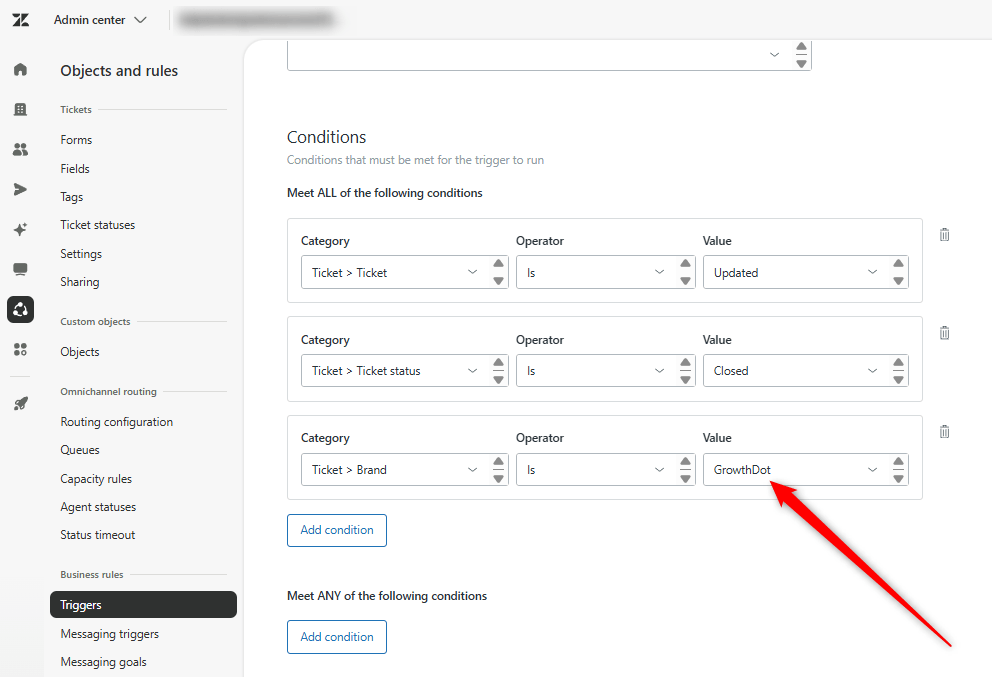
2. Add the conditions that make the trigger fire when a ticket is closed.
3. Make the third condition Ticket > Brand, and select the brand this trigger applies to.
4. Save the trigger and give it a name that includes the brand, so it is easy to find later.
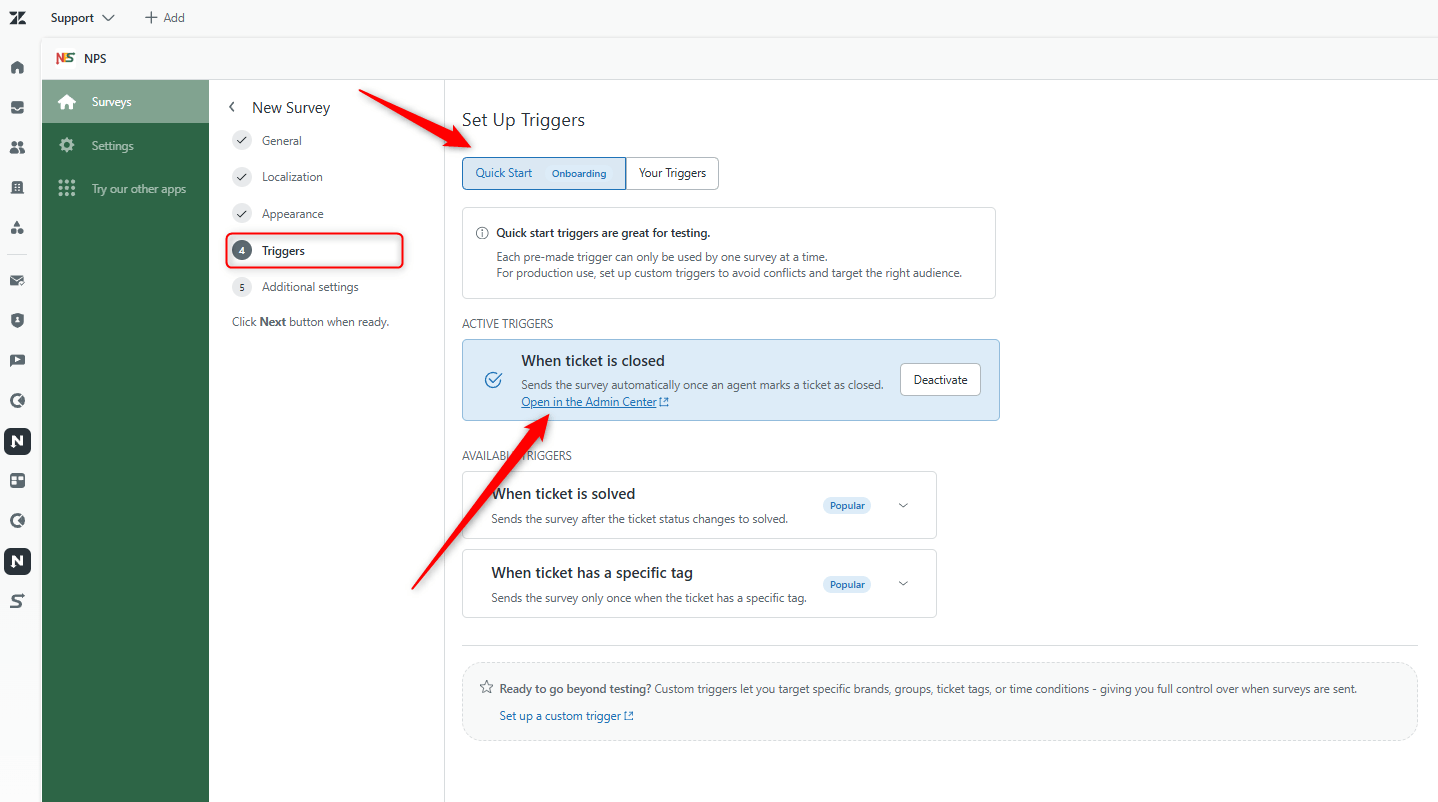
Tip: You can use Quick Start NPS trigger creator while creating a survey and manually add Brand condition. Just click on Open the Admin Center and redact it.
5. Repeat for every brand you want to survey.
These conditions make sure the survey email goes out only for the correct brand when its ticket is closed.
Step 2: Set up a survey for each brand
Once every brand has a trigger, create the matching surveys in the app.
1. Open the NPS & Survey app and create a new survey.
2. Configure the survey specifically for one brand, including that brand's logo and questions.
3. At the step where you select a trigger, choose the trigger you created for that brand in Step 1.
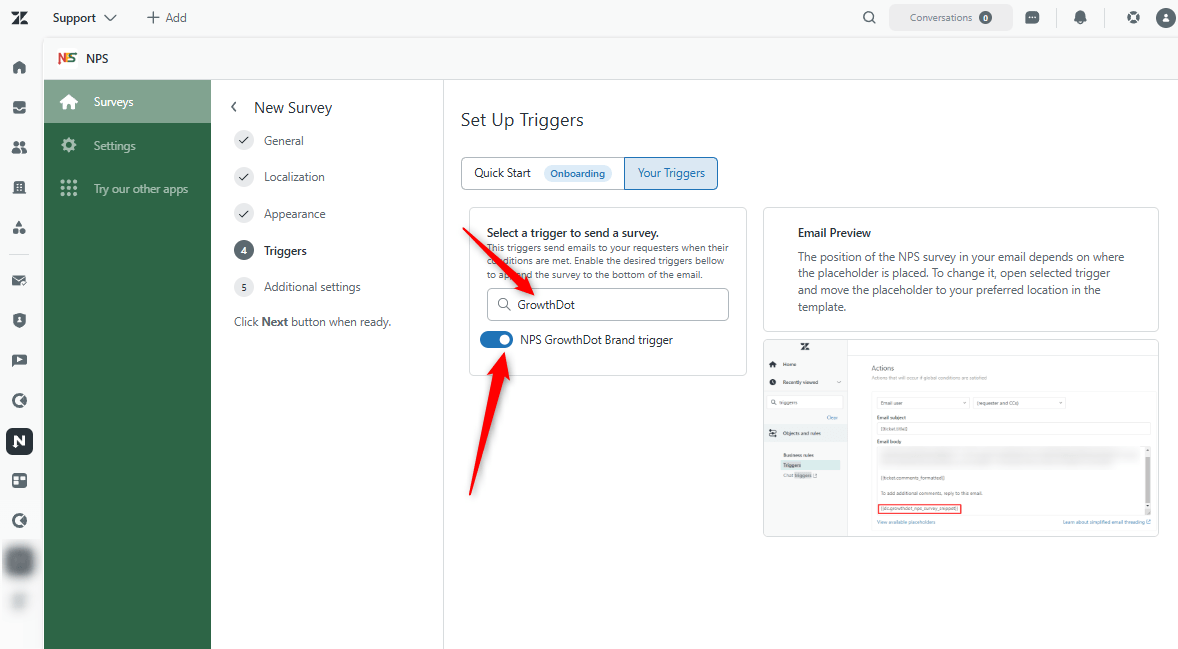
4. Save and activate the survey.
5. Repeat for each brand.
For example, for "A Brand", the survey must be configured for A Brand and connected to the A Brand trigger. When a ticket for that brand is closed, the customer receives the survey with that brand's logo and questions.
Statistics and survey limits
You receive separate statistics for each brand's survey, so you can track results brand by brand. The app does not limit the number of surveys you can configure or send, as long as all brands are managed within the same Zendesk instance.
Triggers are flexible. Besides brand, you can base a trigger on ticket tags or other criteria, which lets you run separate surveys for different segments and manage each one independently.