How to Set Up Email Tracking Triggers
-
Email Tracking

Email Tracking works through Zendesk triggers. The app can only track an email if the trigger that sends it is enabled for tracking. This article explains how that works, how to turn tracking on for a trigger, what to do if a trigger is missing, and where to see the results.
1. How trigger-based tracking works
When Zendesk sends an email notification to a customer, it does so because a trigger fired. Email Tracking adds its tracking to the emails sent by the triggers you enable in the app. Emails sent by triggers that are not enabled are not tracked.
In practice this means:
- Tracking is set per trigger, not per ticket or per agent.
- To track replies to customers, enable the triggers that send them. For example, enable Notify requester and CCs of received request and Notify requester and CCs of comment update to track reply opens.
- If you have custom triggers that send emails, enable those too. Otherwise their emails will not be tracked.
- If your triggers are set up correctly, no additional steps are needed for tickets created through the API.
2. How to enable tracking for a specific trigger
You can enable triggers in two places.
From the pop-up when creating a ticket
- Create a new ticket in Zendesk.
- In the pop-up asking you to set up triggers, switch on all the triggers you need, or only some of them, depending on your purpose.
- Make sure every trigger that sends emails you want to track is switched on, so the app works correctly.

If you close the pop-up, it appears again every time you create a new ticket, until you enable the needed triggers or dismiss the message. If you dismiss it, you can still enable triggers at any time from the Settings page.
From the Settings page
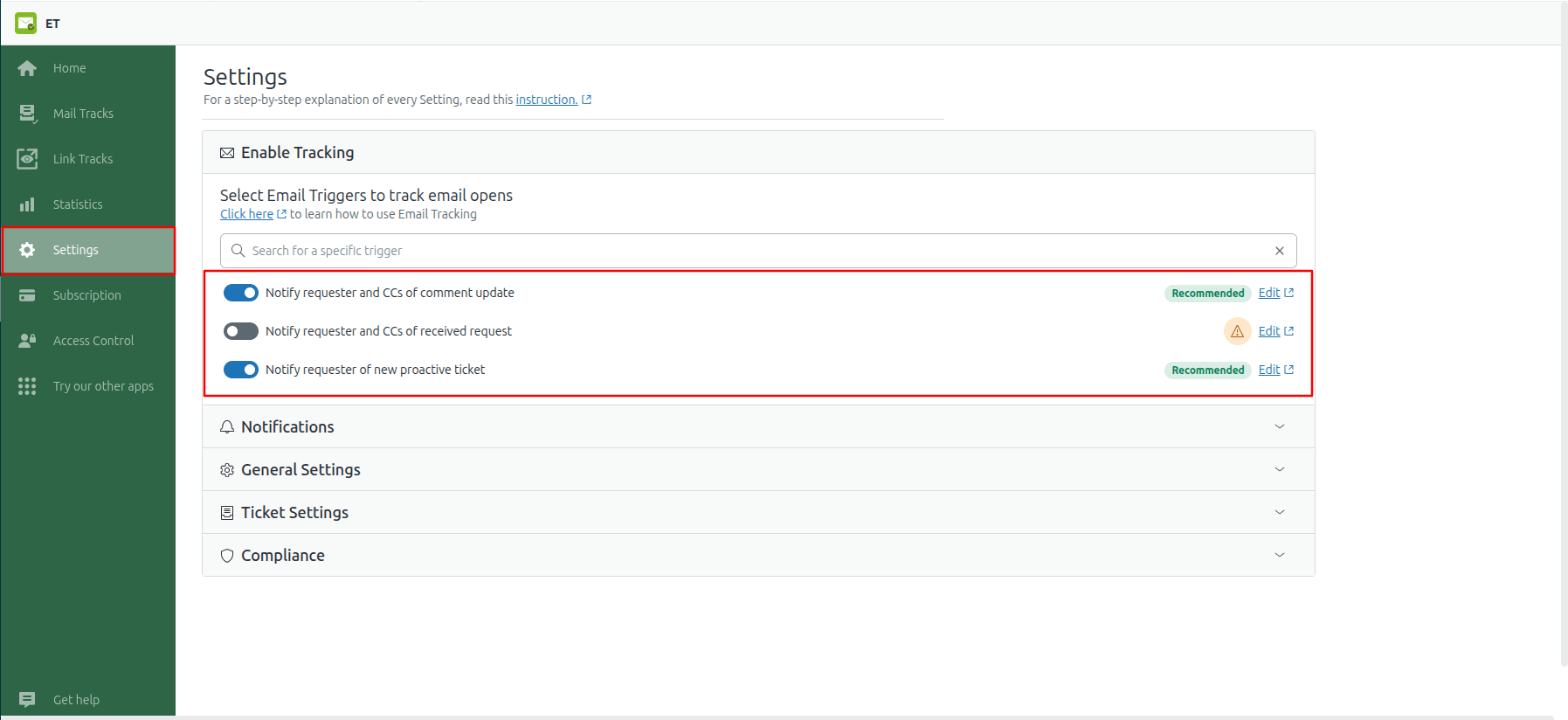
- Open the Email Tracking app and click the Settings icon in the left-hand sidebar.
- In the Enable Tracking section, switch on the triggers you want to track.
For a full overview of the other options, see Email Tracking Settings Page Explained
FAQ
Email Tracking Triggers in Zendesk
1. The trigger is deactivated. Deactivated triggers are not displayed on the Settings page. Activate the trigger in Zendesk first.
2. The trigger uses an unsupported email action. The list only displays triggers that include one of these actions:
- Notify by > User email | Ticket > (requester and CCs)
- Notify by > User email | Ticket > (requester)
Triggers with other action values are not displayed in the Settings tab. If you create a new trigger for emails you want to track, use one of the supported actions listed above.
No. Only triggers that contain one of the following actions appear in the list:
- Notify by > User email | Ticket > (requester)
- Notify by > User email | Ticket > (requester and CCs)
Other triggers are not displayed and cannot be enabled for tracking.
In case something wasn’t clear enough, or you’d like to get into more details, feel free to browse our Help Center or contact our support team for help.