How to Use Bulk Export and Redact Attachments Add-ons Together in GDPR Compliance
-
GDPR Compliance

Managing customer data often requires two steps: exporting the information you need and removing data that no longer needs to be stored.
By using the Bulk Export Add-on and Redact Attachments Add-on together, you can export customer records, securely retain required information, and permanently remove unnecessary attachments from Zendesk. This workflow is useful for:
- GDPR and privacy requests
- Data retention requirements
- Audits and compliance reviews
- Zendesk migrations
- Reducing unnecessary attachment storage
In this guide, you'll learn how to use both add-ons together to manage customer data securely.
Before You Start
Before following this guide, make sure you have the GDPR Compliance app for Zendesk installed and an active Premium plan with access to add-ons.
If you don't have both add-ons yet, you can purchase them separately or get them together as a bundle.
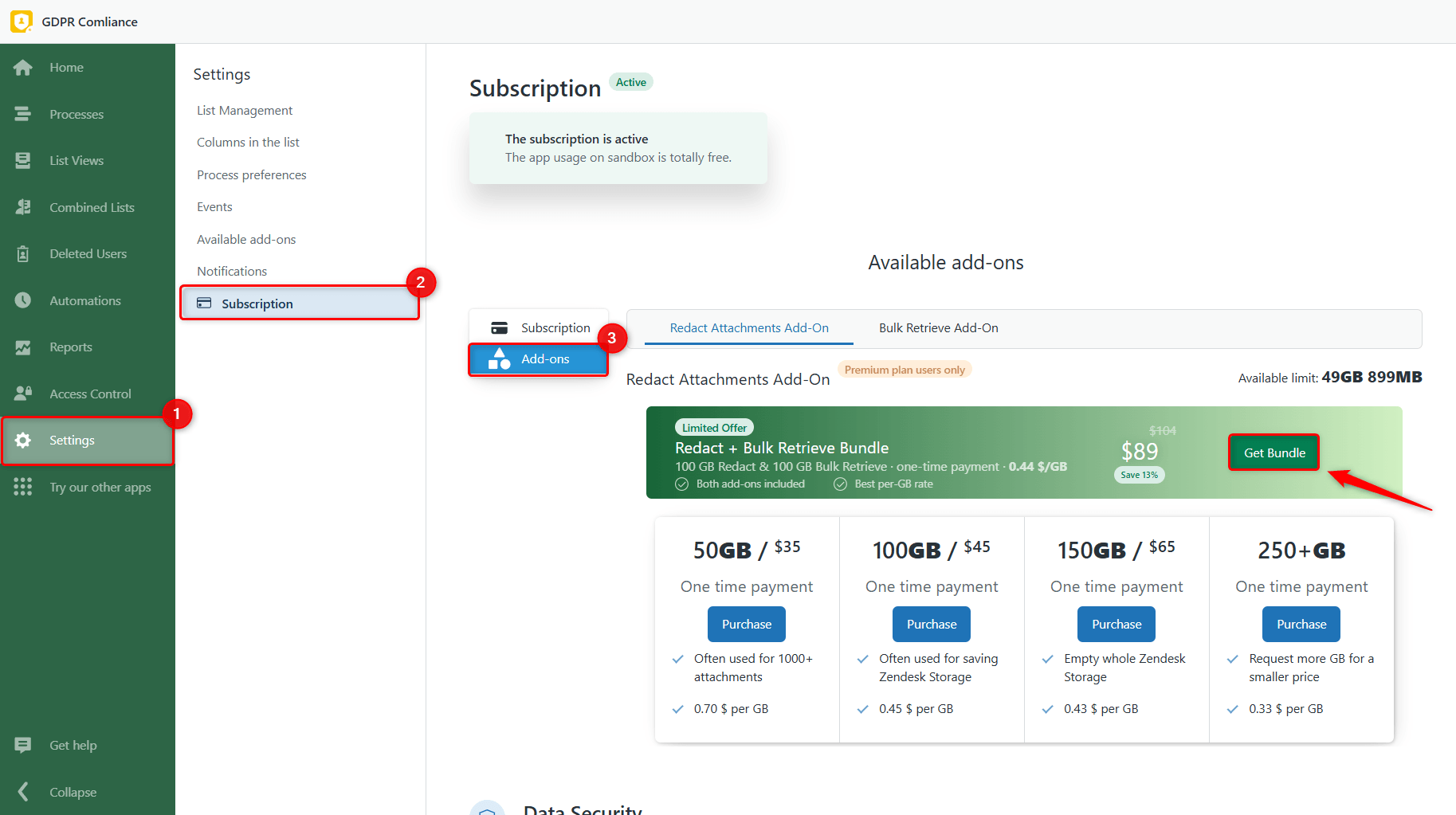
To purchase the bundle, open GDPR Compliance and go to Settings → Subscriptions → Add-ons. On the bundle banner, click Get Bundle and complete the purchase.
How to Combine the Bulk Export and Redact Attachments Add-ons in One Workflow
The recommended workflow is to export required customer data first and remove unnecessary attachments only after the information has been securely stored.
This helps you fulfill data requests, maintain required records, and remove sensitive information that no longer needs to remain in Zendesk.
Step 1. Export Customer Data with Bulk Export
Start by exporting the customer data you need to retain, share, or review. The Bulk Export Add-on allows you to export Zendesk records in bulk for GDPR requests, audits, reporting, archiving, or migrations.
To start:
- Open the GDPR Compliance app.
- Create a filtered list of data (users, tickets, or organizations). Learn how here.
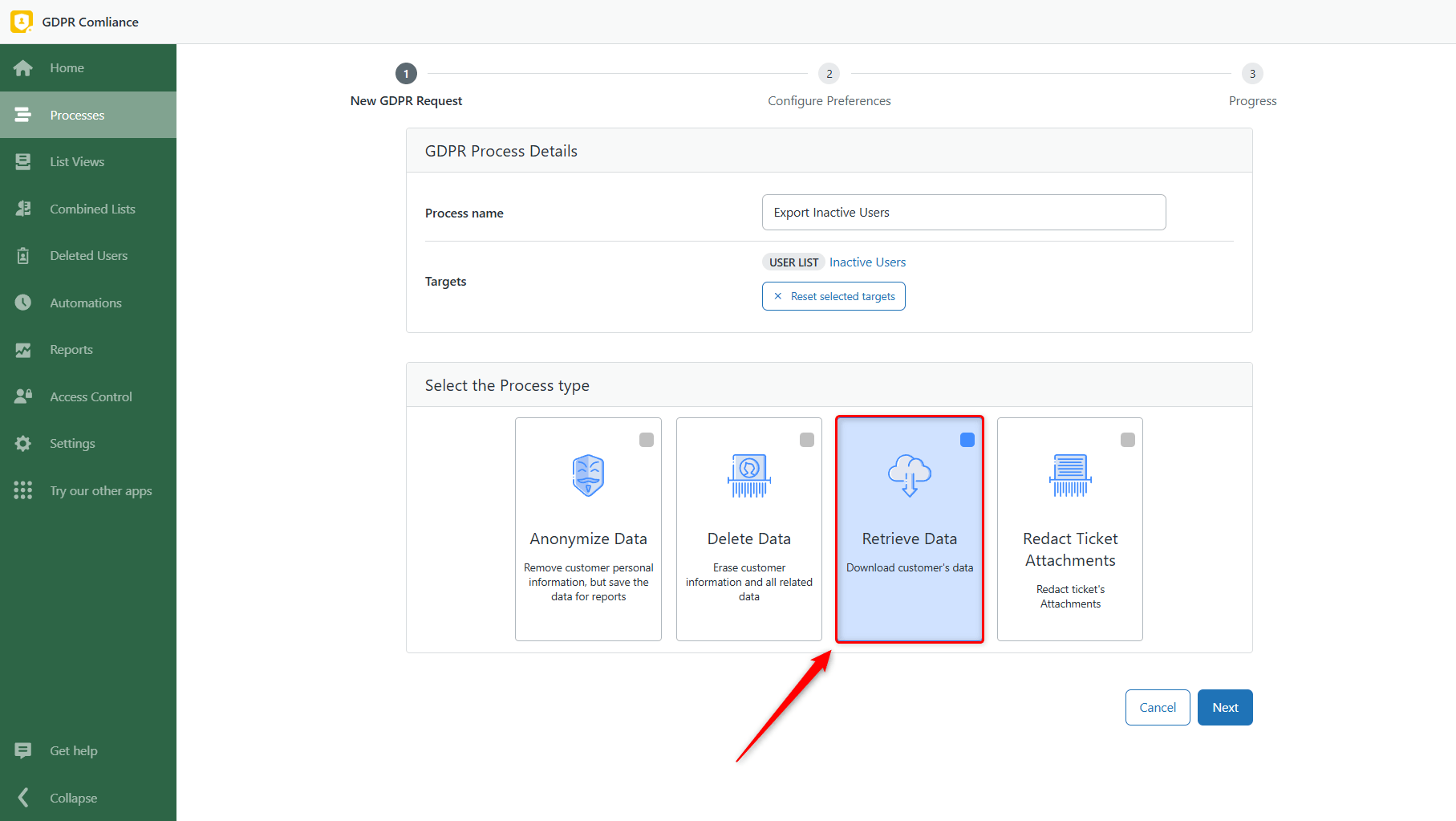
- Process the list and select Retrieve Data as the process type.
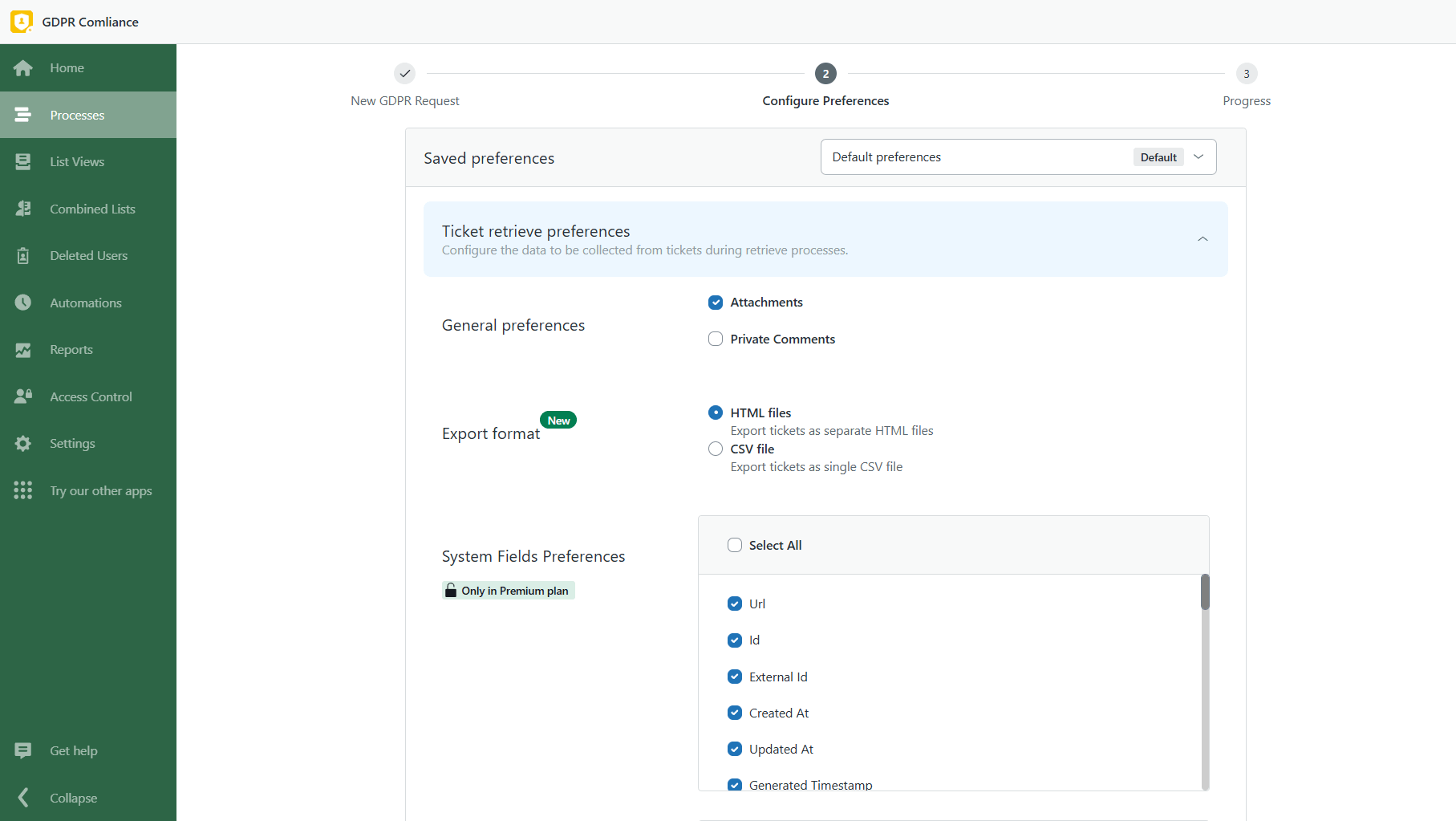
On the second step, configure the information you want to include. For example, you can select attachments if you plan to review or retain them before redaction.
Choose the export format (CSV or HTML) and start the process.
Step 2. Download and Store Exported Data
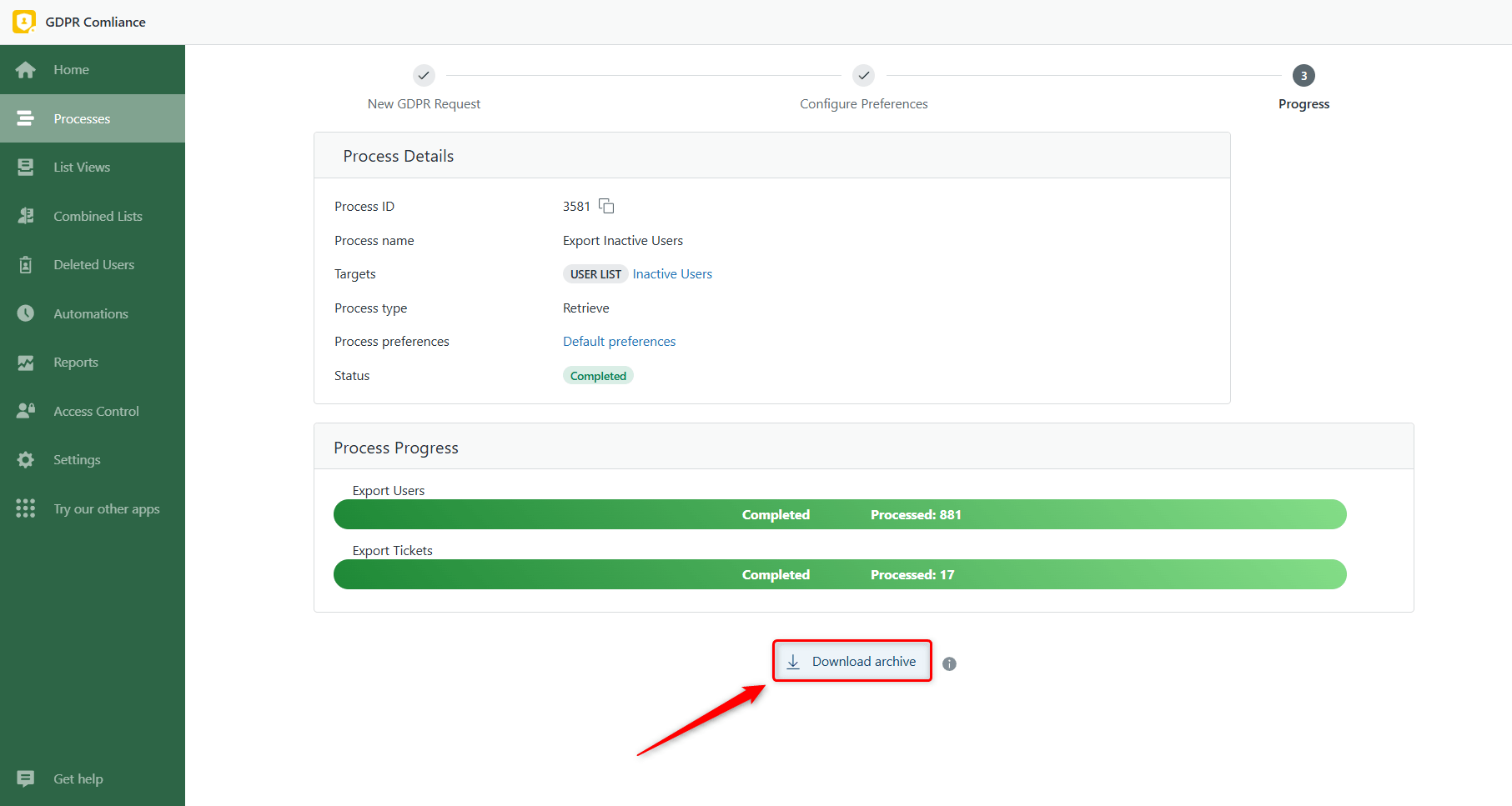
After the retrieval is completed, download the archive and review the exported information.
Depending on your workflow, you can:
- Deliver the requested data as part of a GDPR or privacy request.
- Archive records for compliance or business purposes.
- Store exported information according to your retention requirements.
Make sure all required information is securely stored before removing attachments from Zendesk.
Step 3. Permanently Redact Unnecessary Attachments
After securing the required information, remove attachments that no longer need to be stored.
The Redact Attachments Add-on permanently removes files attached to tickets, helping reduce sensitive data stored in Zendesk. To redact attachments:
- Select the same list you just exported.
- Click Process GDPR request.
- Select Redact Ticket Attachments.
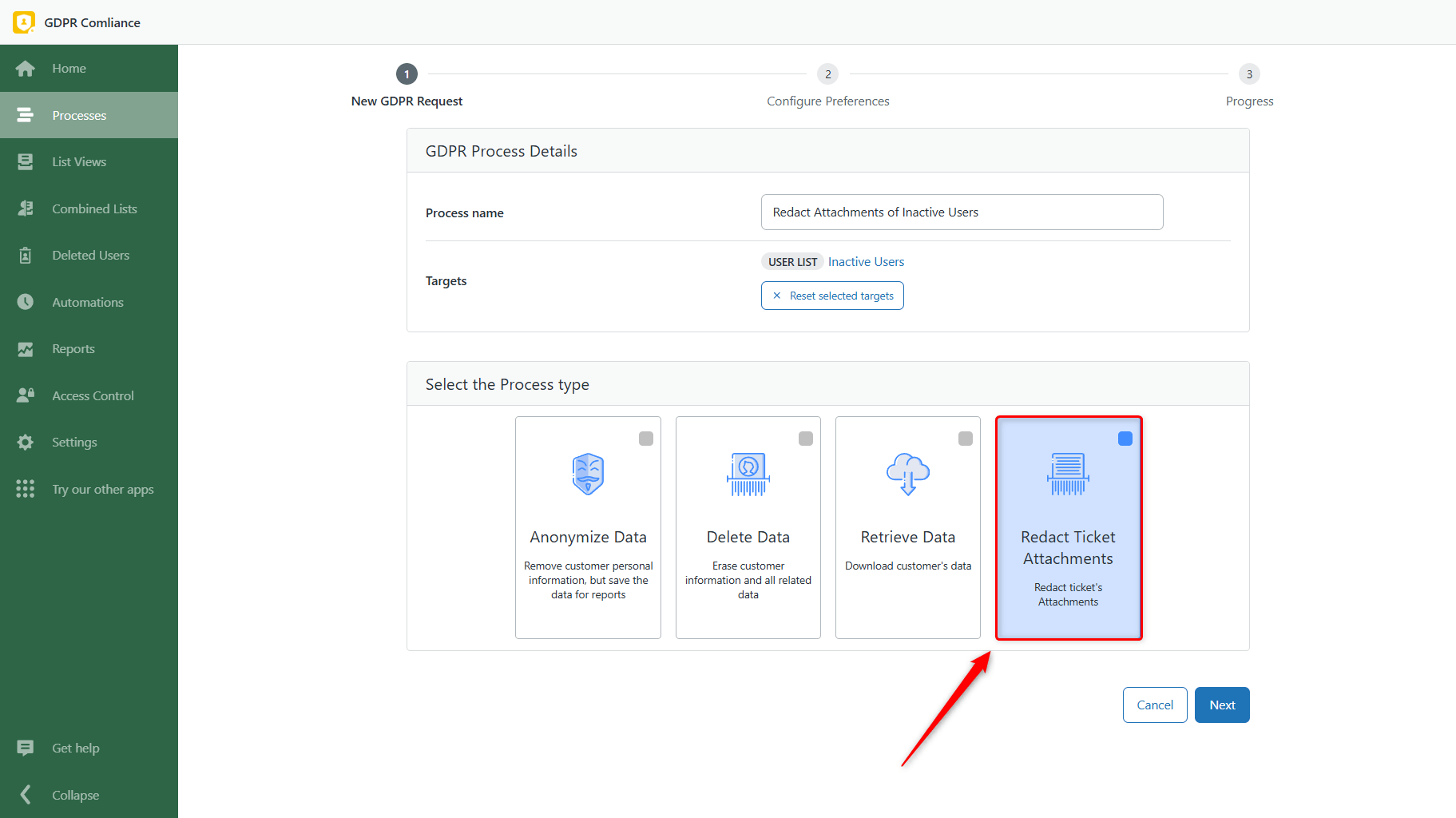
Then, configure which attachment types should be removed and start the redaction process.
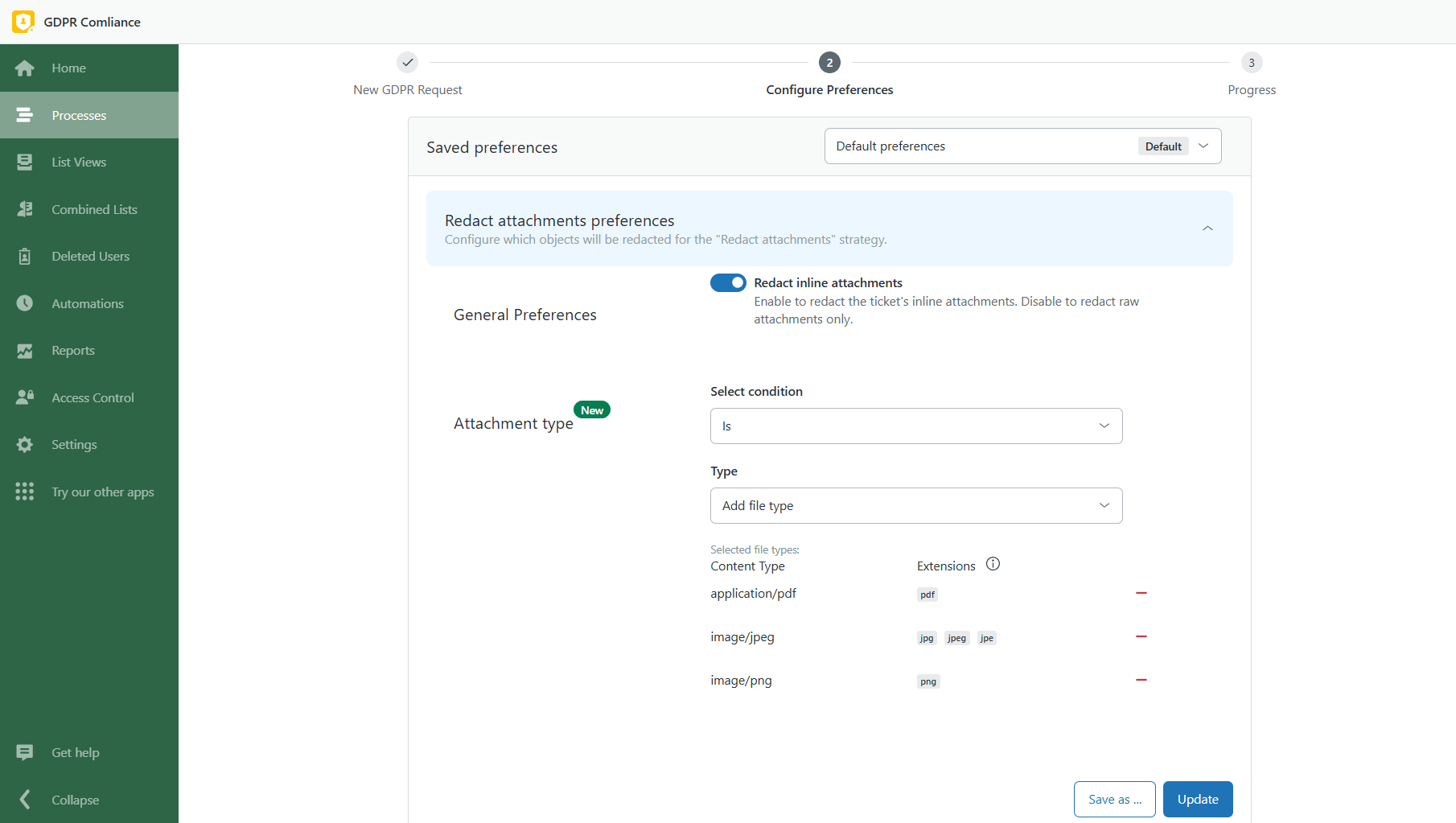
Common Use Cases
The Bulk Export and Redact Attachments Add-ons work together for workflows where you need to preserve required customer data while removing information that no longer needs to be stored. Common scenarios include:
- GDPR and Privacy Requests: Export the requested customer data, provide the required information, and remove unnecessary attachments afterward.
- Data Retention: Archive required records and permanently remove attachments that exceed your organization's retention requirements.
- Zendesk Migration: Remove unnecessary attachments before exporting data to reduce the amount of information transferred. Audits and
- Compliance Reviews: Export records for review and clean up outdated attachments to maintain compliance.
If you have additional questions, please contact our support team.