How to Assign Campaign Tickets to Different Agents with a CSV
-
Proactive Campaigns

When sending mass email campaigns, you can automatically assign created tickets to different agents or groups in Zendesk using a CSV file. This helps keep customer communication organized and ensures replies go directly to the right team member.
How It Works
Each row in your CSV file creates a separate ticket in Zendesk.
If your file includes assignment-related columns, Proactive Campaigns will use these values to automatically configure each created ticket. This allows you to manage ticket ownership directly from your import file instead of configuring assignments manually for every campaign.

Need help setting up your campaign workflow?
Schedule a quick callPrepare Your CSV File
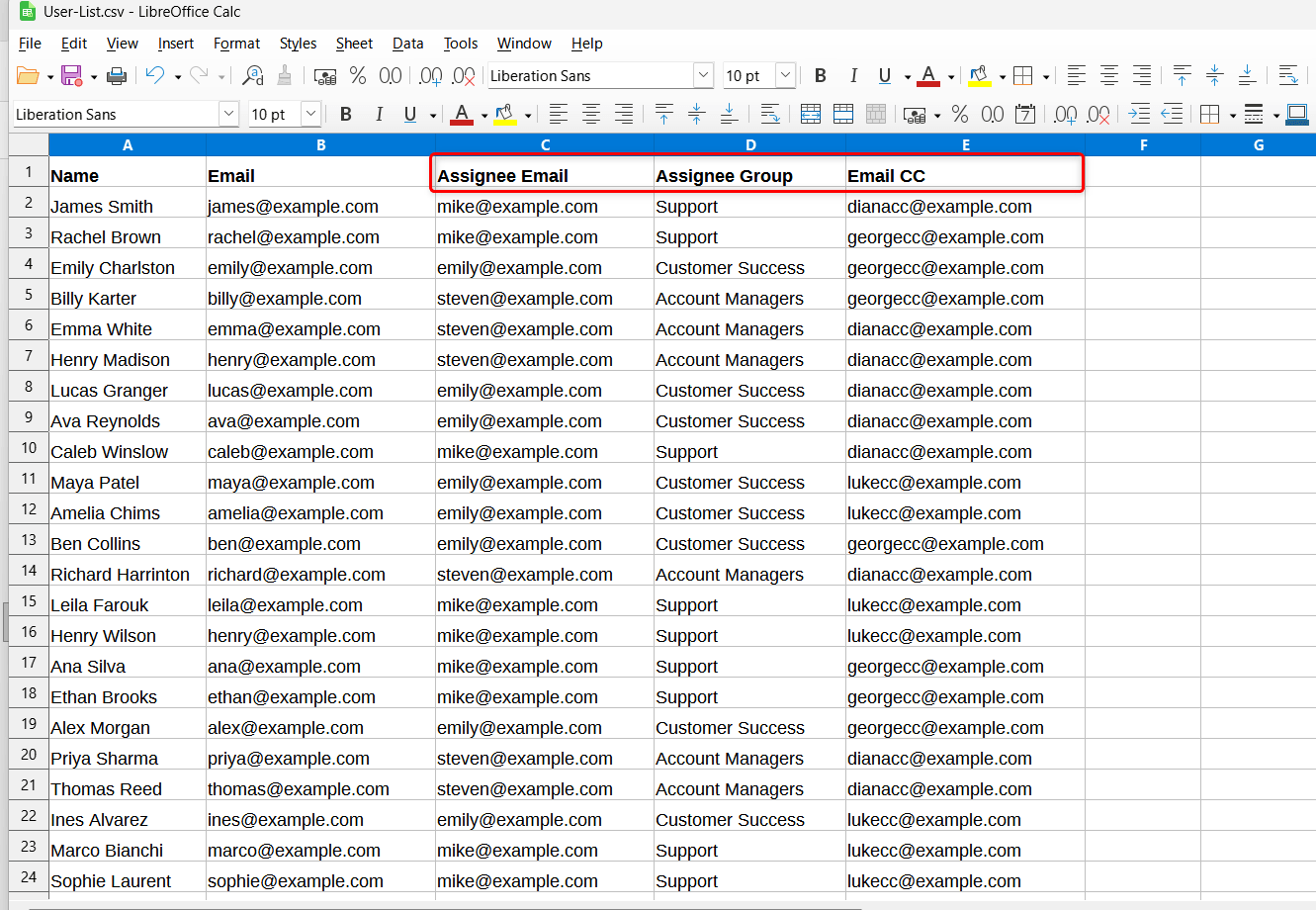
Create or update your CSV file with columns for:
- Assignee Email
- Assignee Group
- CCs (optional)
Here’s the example:
Important: Make sure all agents and groups already exist in your Zendesk instance. Incorrect or non-existent values may prevent ticket assignment from working properly.
Upload the CSV File
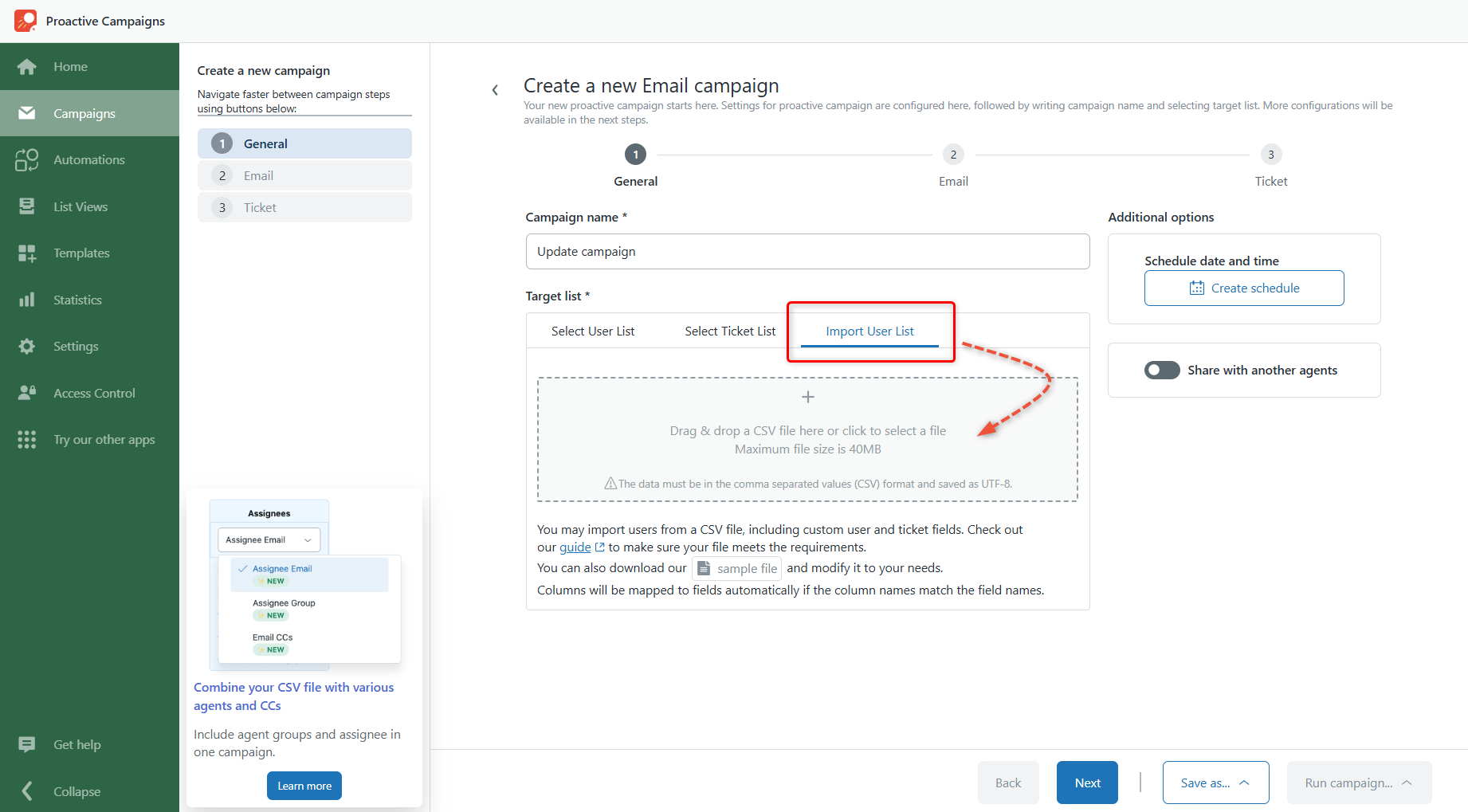
When your CSV is ready, start a new email campaign.
In the Target list section, open the Import User List tab and upload your CSV file.
Map CSV Columns
After uploading the file, map your CSV columns with Zendesk fields.
If your column names match supported field names, mapping will happen automatically. Otherwise, you can manually select the correct fields from the drop-down menu.
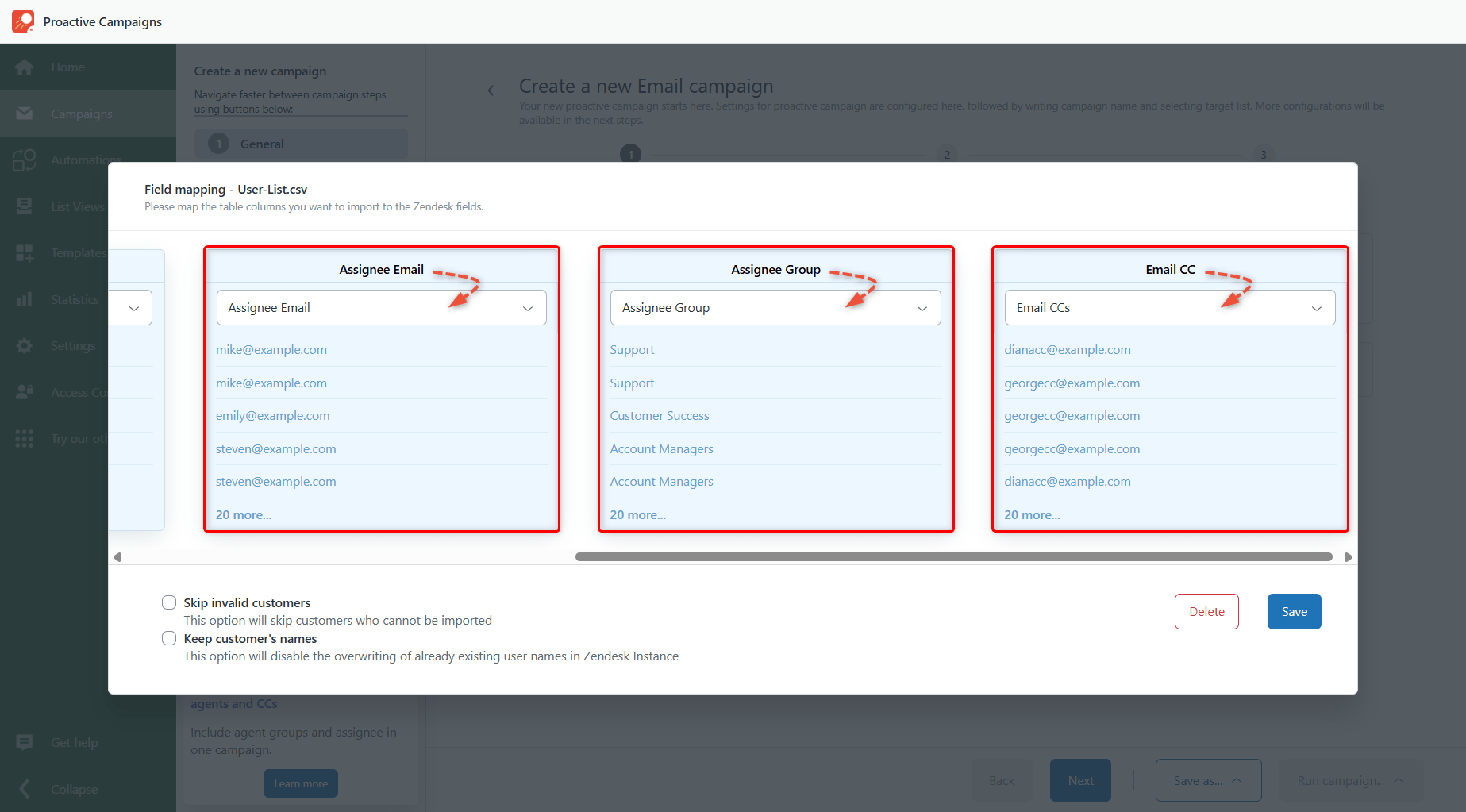
Then, click Save.
Finish Campaign Setup
Continue creating your campaign as usual.
On the final step, under ticket configuration settings, you’ll notice that the Assignee Group, Assignee Agent, and CCs fields are blocked for manual editing. This happens because these values are already configured to be imported directly from your CSV file.
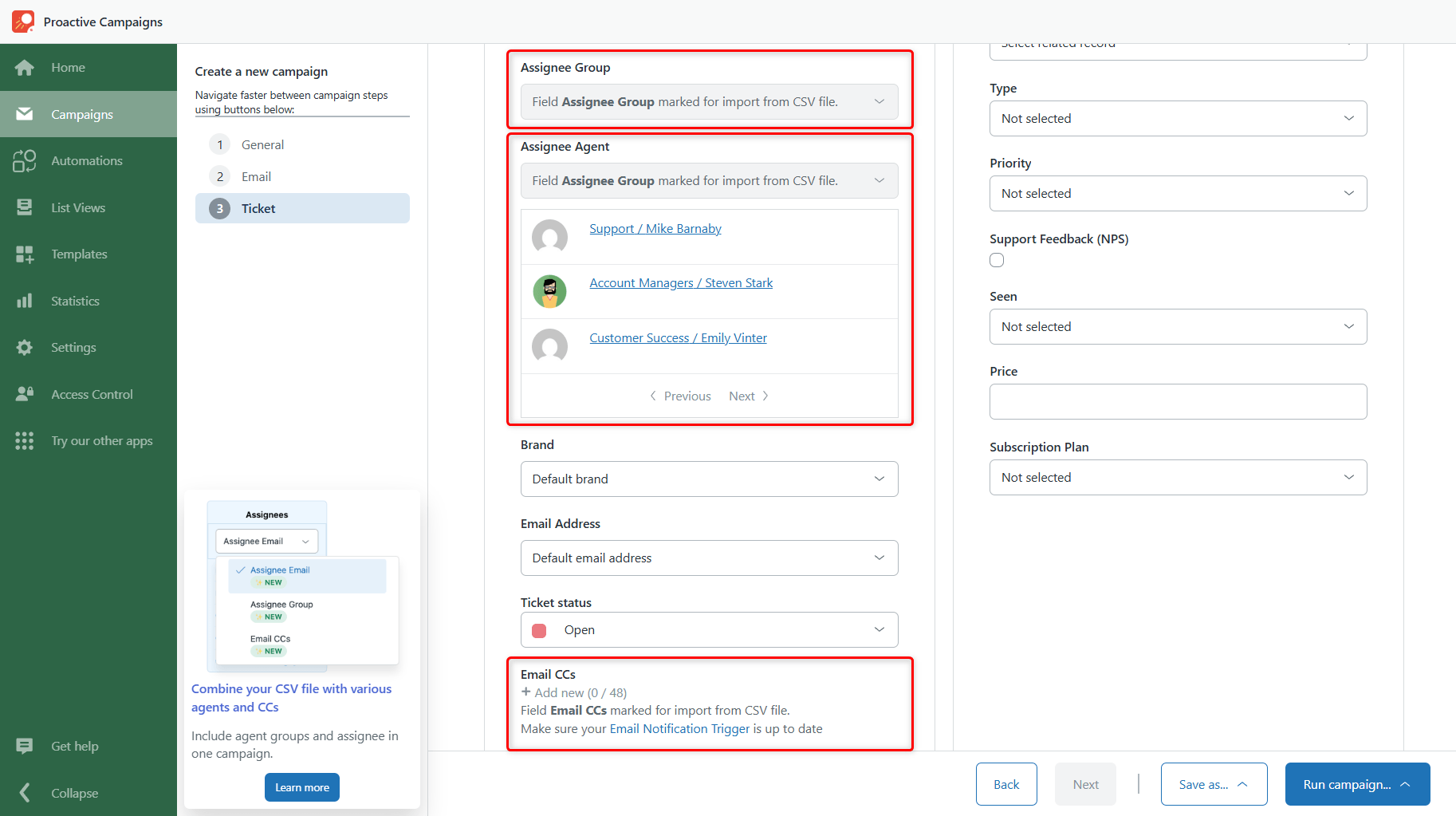
Finally, click Run campaign > Save and run.
Campaign Result
After you launch the campaign:
- a separate ticket will be created for each contact,
- tickets will automatically be assigned to the correct agents or groups,
- CC recipients will be added based on your CSV data.
This helps teams organize incoming campaign replies faster and route conversations to the right people automatically.