How to Track Contacts in Email Automations with Proactive Campaigns
-
Proactive Campaigns

The Audience tab lets you track every contact's journey through a specific automation in Proactive Campaigns. You can see who's currently moving through the automation, who has completed it, and who left before reaching the end. This guide explains how to use and understand the information this tab provides.
What is the Audience tab
The Audience is available inside each individual automation in Proactive Campaigns. To find, open an automation and select the Audience next to the Journey tab.
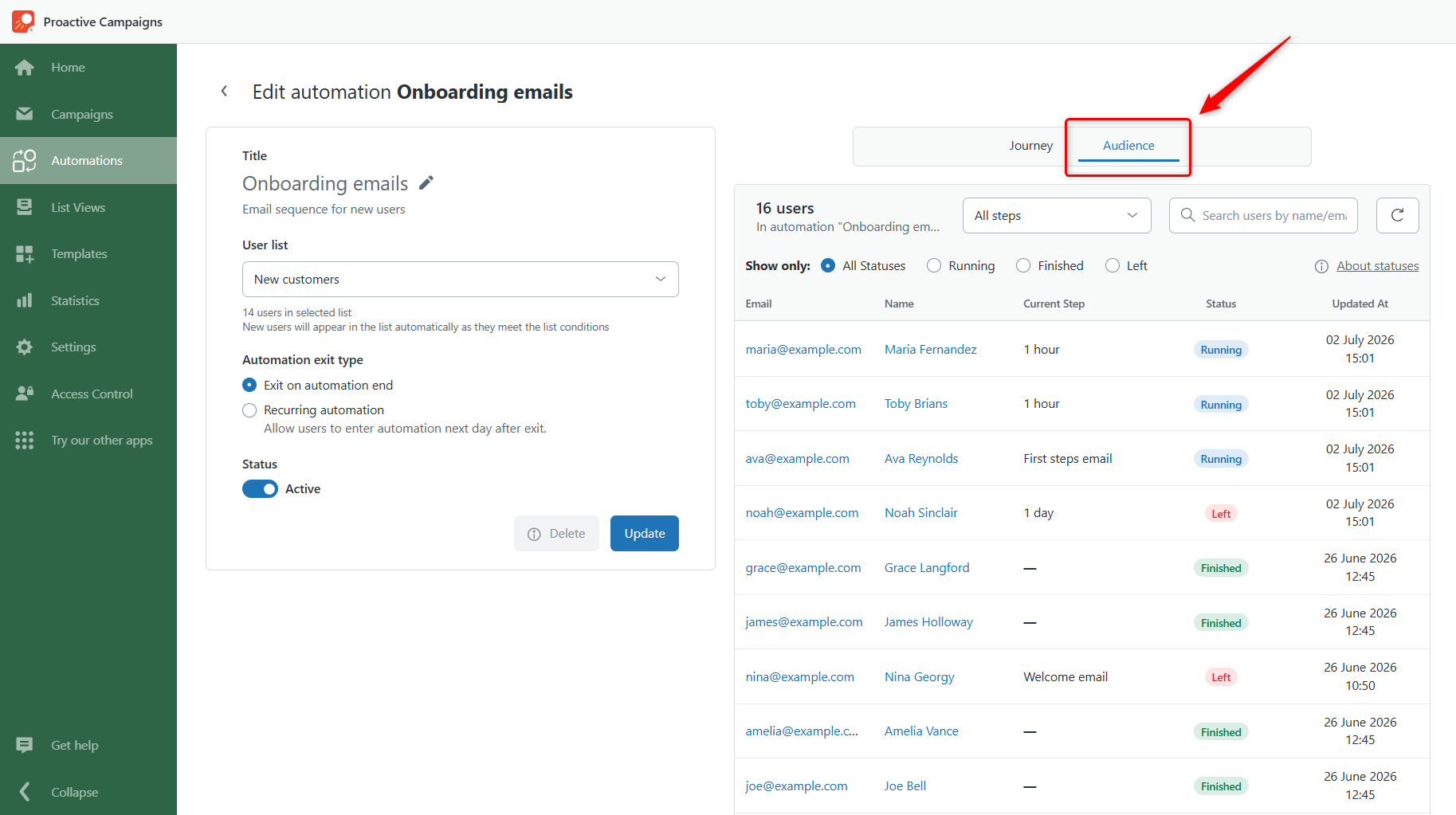
It shows a list of every contact who is currently active or has previously been part of that automation. For each contact, you can see:
- Name and email address
- Current step — where they are in the automation
- Status — whether they're running, finished, or have left the automation
- Updated at — when their status was last updated
The Audience only shows contacts for the automation you're currently viewing. If you have multiple automations, open each one separately to see its audience.
Understanding contact statuses
Every contact in the automation has one of three statuses:
Running
The contact is currently active in the automation and moving through its steps. They haven't completed the final step yet and still match the conditions required to be in the automation.
Finished
The contact has completed all steps in the automation and exited successfully. This is the expected outcome for a contact who goes through the full flow.
Left
The contact exited the automation before completing all steps because they no longer matched the list conditions tied to that automation. This is not an error — it means the contact's data changed (for example, a tag was removed or a ticket status was updated) and they were automatically removed to keep your automation accurate.
How to filter contacts in the automation
You can filter contacts by automation step in two ways:
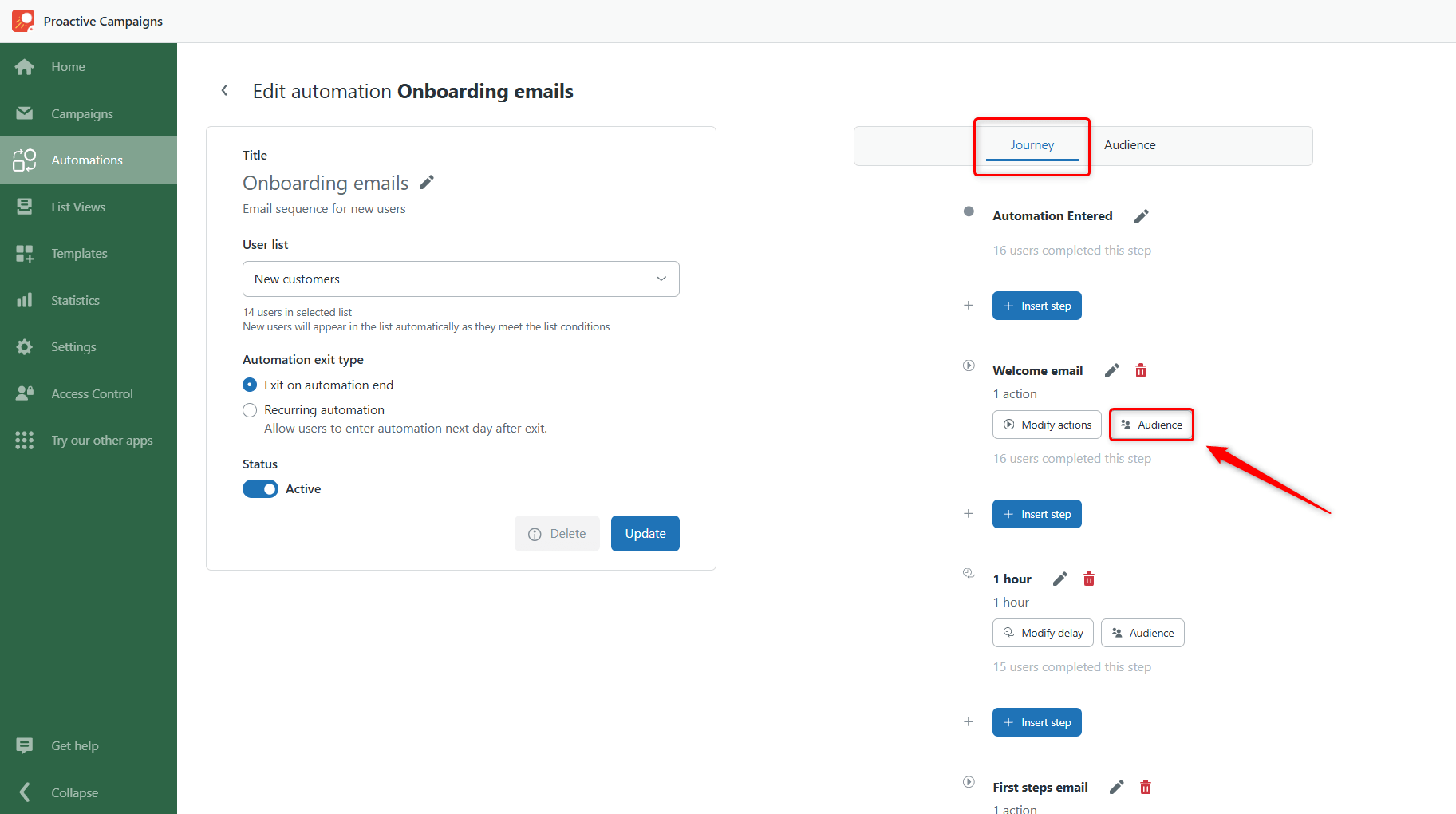
Option 1: From the Journey Tab
In the Journey tab, click the Audience button below any step to view all contacts currently at that step.
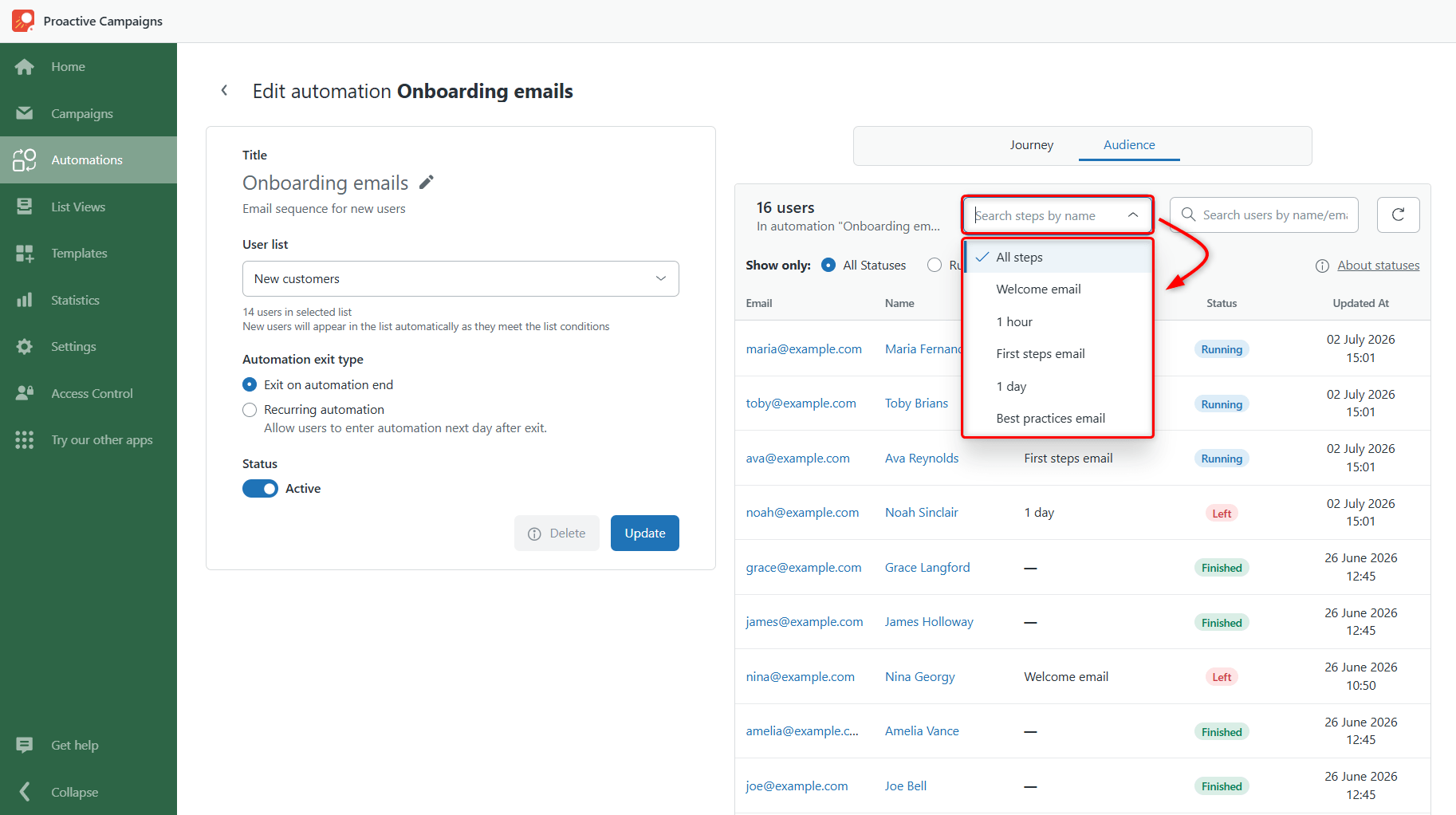
Option 2: From the Audience Tab
In the Audience tab, select the step you want to view from the dropdown menu.
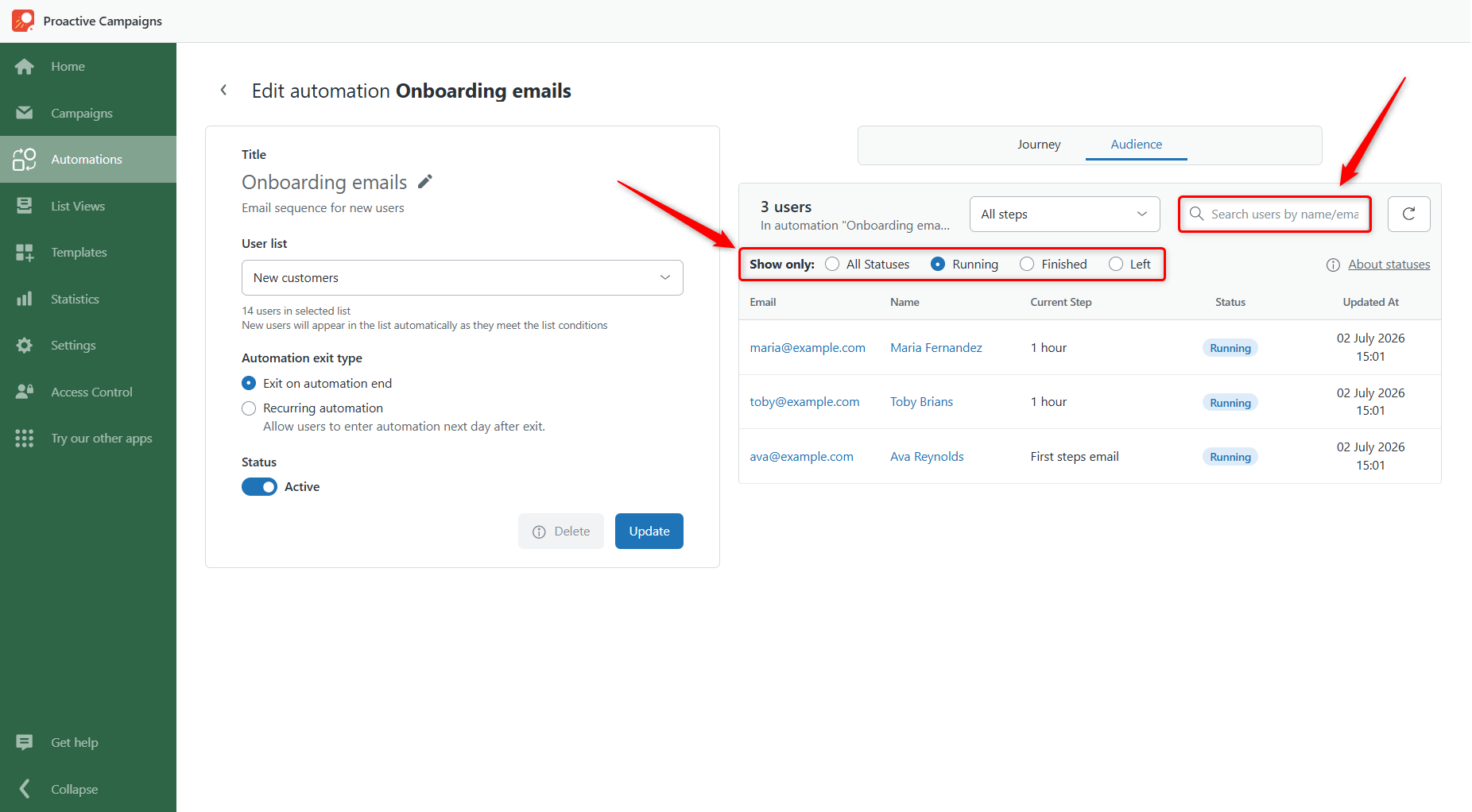
You can also filter contacts by status (Running, Finished, or Left) to quickly find contacts in each stage of the automation. Finally, use the search bar to find a contact by name or email address.
How to use the audience data
The Audience feature helps you monitor how contacts move through your automation and troubleshoot issues when something doesn't work as expected. You can use it to:
- Confirm that a specific contact entered the automation
- Check if a specific contact received your emails
- Spot where contacts drop off
- Identify why contacts are leaving early
- Confirm that the automation is working as intended
Now that you know how to track your customers' journey, start building your automation flow with confidence. As contacts move through it, the Audience tab will help you monitor their progress and quickly spot any issues.
Having questions? Contact our support team.