How to Personalize Links with Placeholders in Proactive Campaigns
-
Proactive Campaigns

You can use placeholders in Proactive Campaigns to add customer-specific information to your messages. This is especially useful when you need to send each customer a unique link, such as a personalized page, account, offer, or temporary URL.
To personalize links, you can combine Zendesk custom fields, a CSV file, and placeholders in Proactive Campaigns.
In this guide, we'll show an example of adding personalized links to an SMS campaign. The same approach can be used when you need to include customer-specific links in other campaign messages.
1. Create a custom field for your links
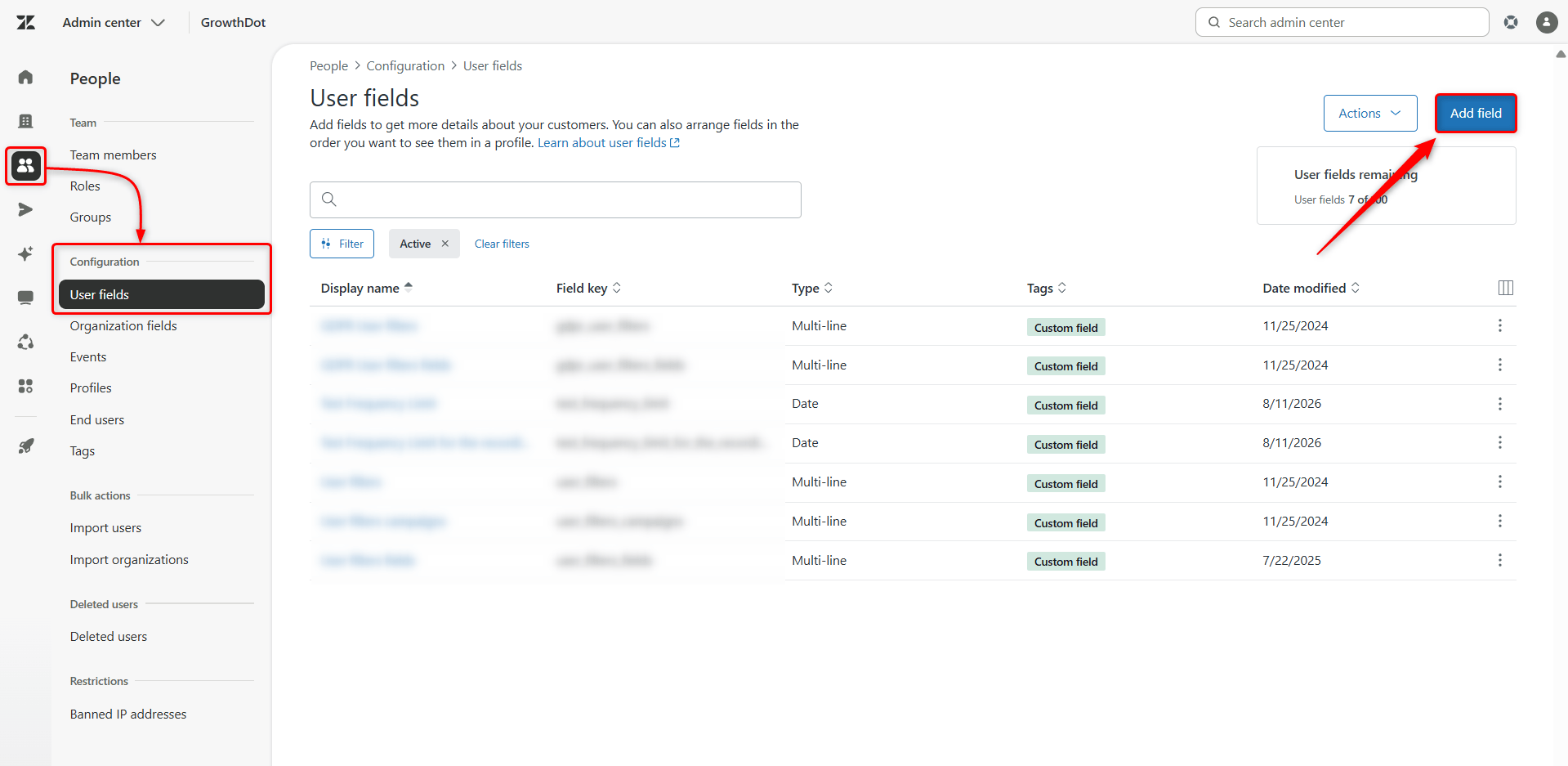
Go to Admin Center → People → Configuration → User fields and click Add field.
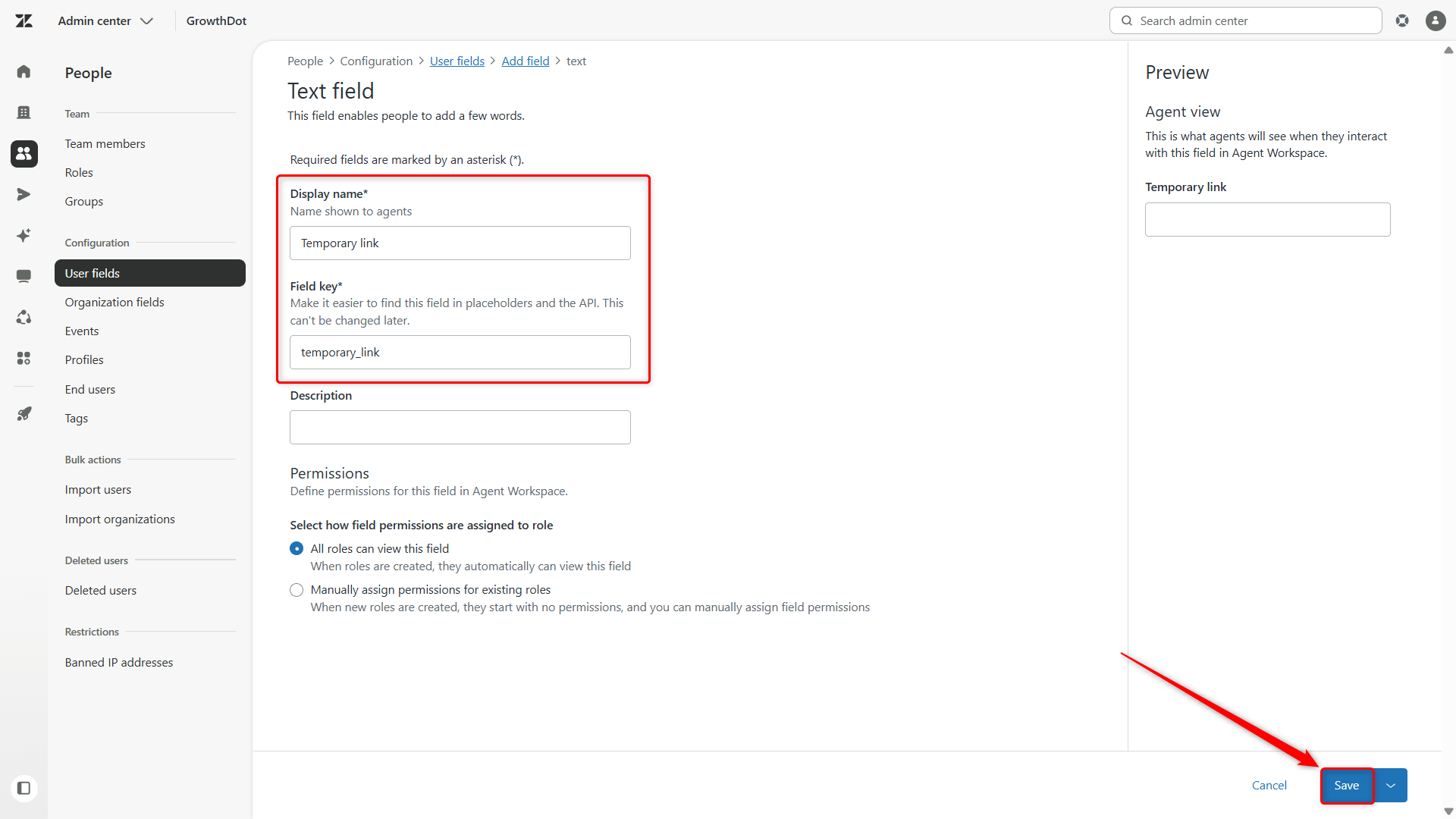
Then, select the Text field and name it. Don’t forget to click Save.
2. Prepare your CSV file
Create a CSV file containing the personalized links and the information needed to identify each customer.
For example, your CSV could contain a Links column with a different URL for each customer.
When adding links to the CSV, enter them without https:// to ensure proper field mapping.

3. Map the links to the custom field
Create a campaign in Proactive Campaigns and upload your CSV file.
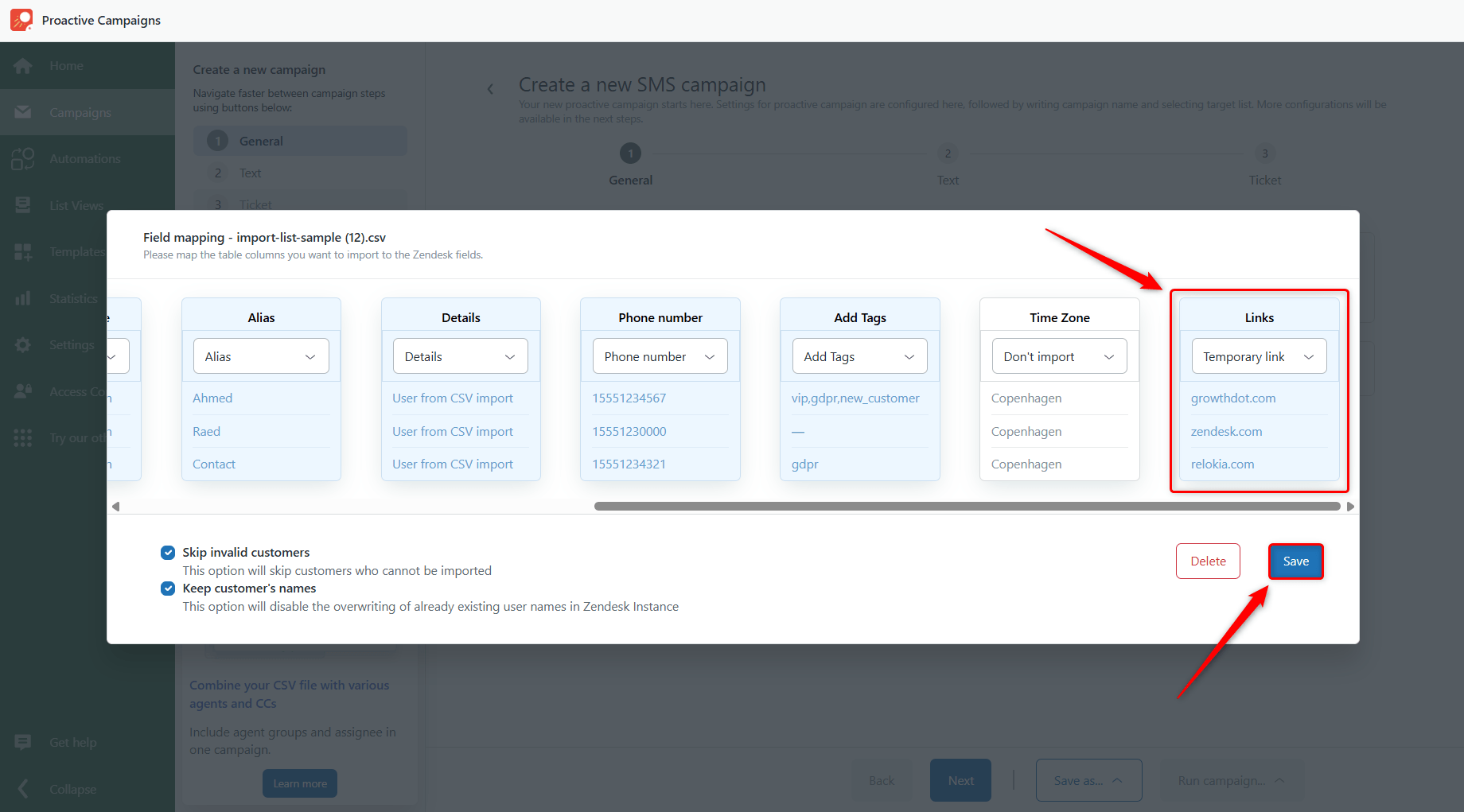
During the field mapping step, map the Links column from your CSV file to the Temporary link custom field you created in Zendesk.
This connects each customer's link from the CSV file to their corresponding Zendesk user field.
4. Add the link placeholder to your message
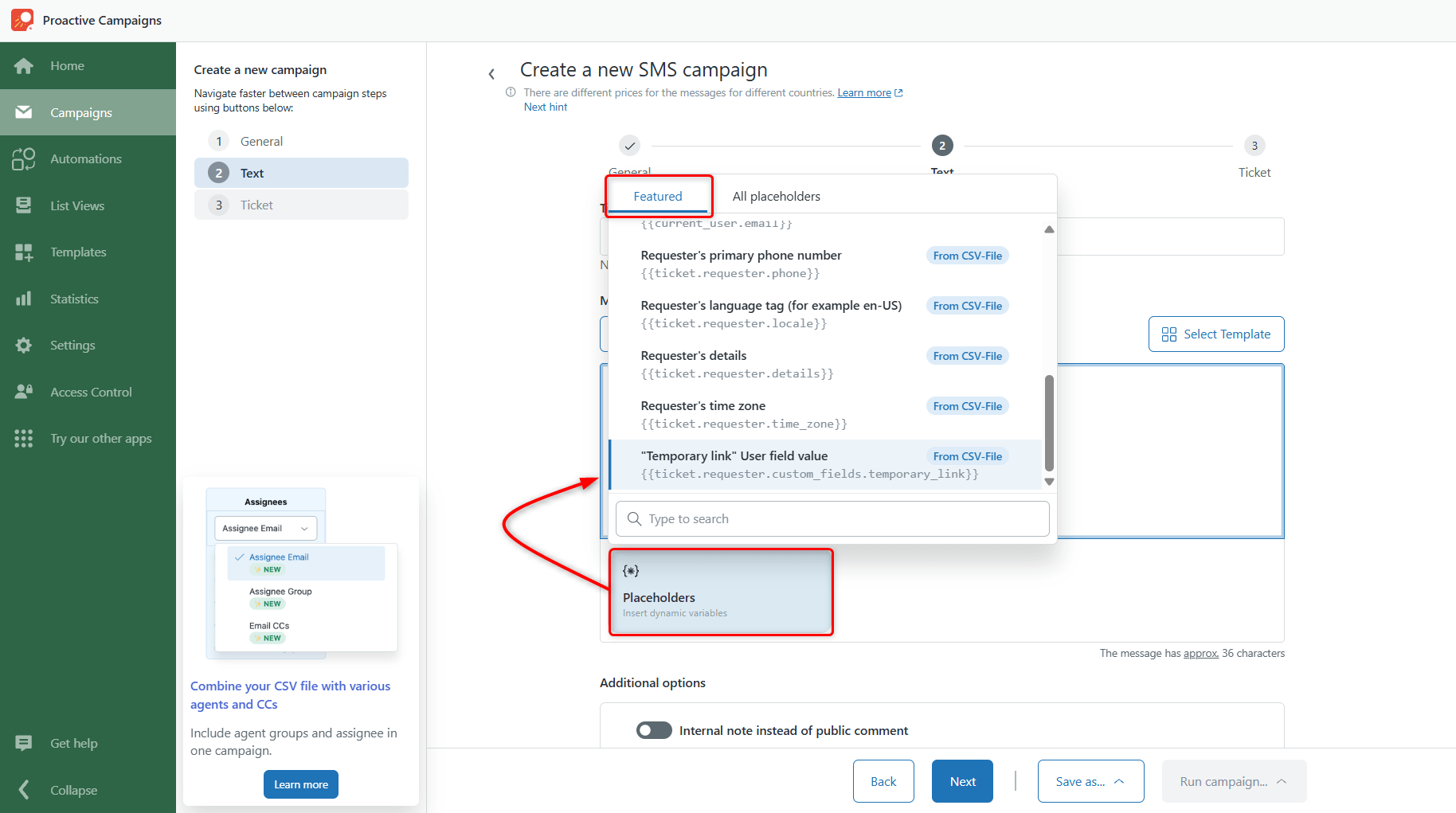
In the text editor, click Placeholders and in the Featured tab find the custom field you created (it will be marked with tag From CSV-File).
Select the placeholder to insert it into your message.
You can also copy and paste the placeholder if you already have it.
For example, if your custom field is temporary_link, the placeholder will look like:
{{ticket.requester.custom_fields.temporary_link}}
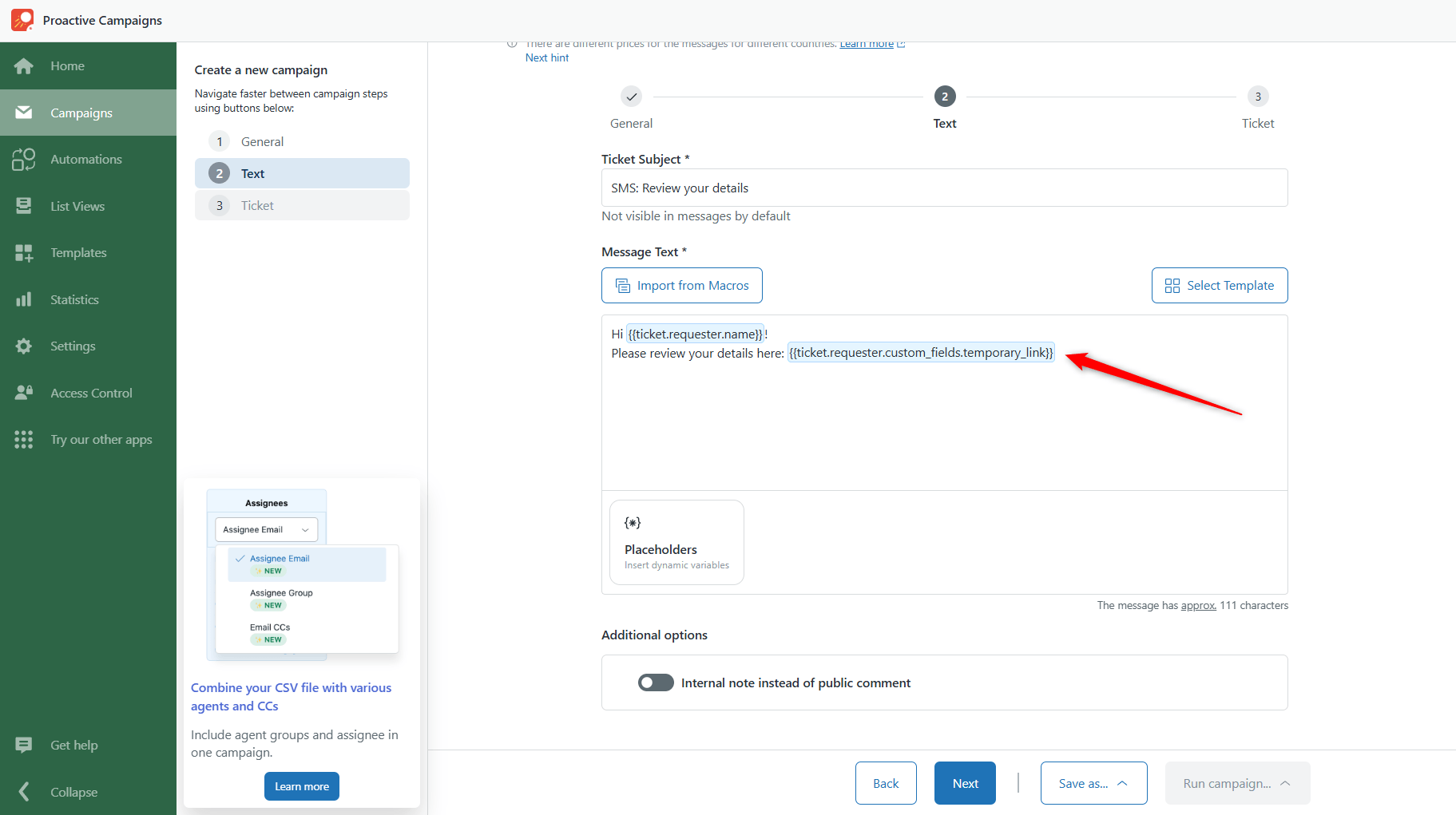
Important: Make sure the field key from Zendesk Admin Center exactly matches the key used in your placeholder. Need to learn more about placeholders? Here is a detailed Zendesk Placeholder reference for business rules.
When the campaign is sent, Proactive Campaigns automatically replaces the placeholder with the value stored in each customer's custom field.
6. Send your campaign
Once your message and settings are ready, run the campaign.
And that's it! Each customer will receive the link stored in their own custom field, so the same campaign can contain a different URL for every recipient.
If you have any questions, please feel free to contact our support team.