How to Use the Template Library in Proactive Campaigns
-
Proactive Campaigns

The Template Library gives you ready-made email templates for common customer communication scenarios. Instead of creating every campaign from scratch, you can choose a template, customize it, and save it for future campaigns.
How to Find the Template Library
Open Proactive Campaigns in Zendesk and go to Templates. Then open the Template Library tab next to Your Templates.
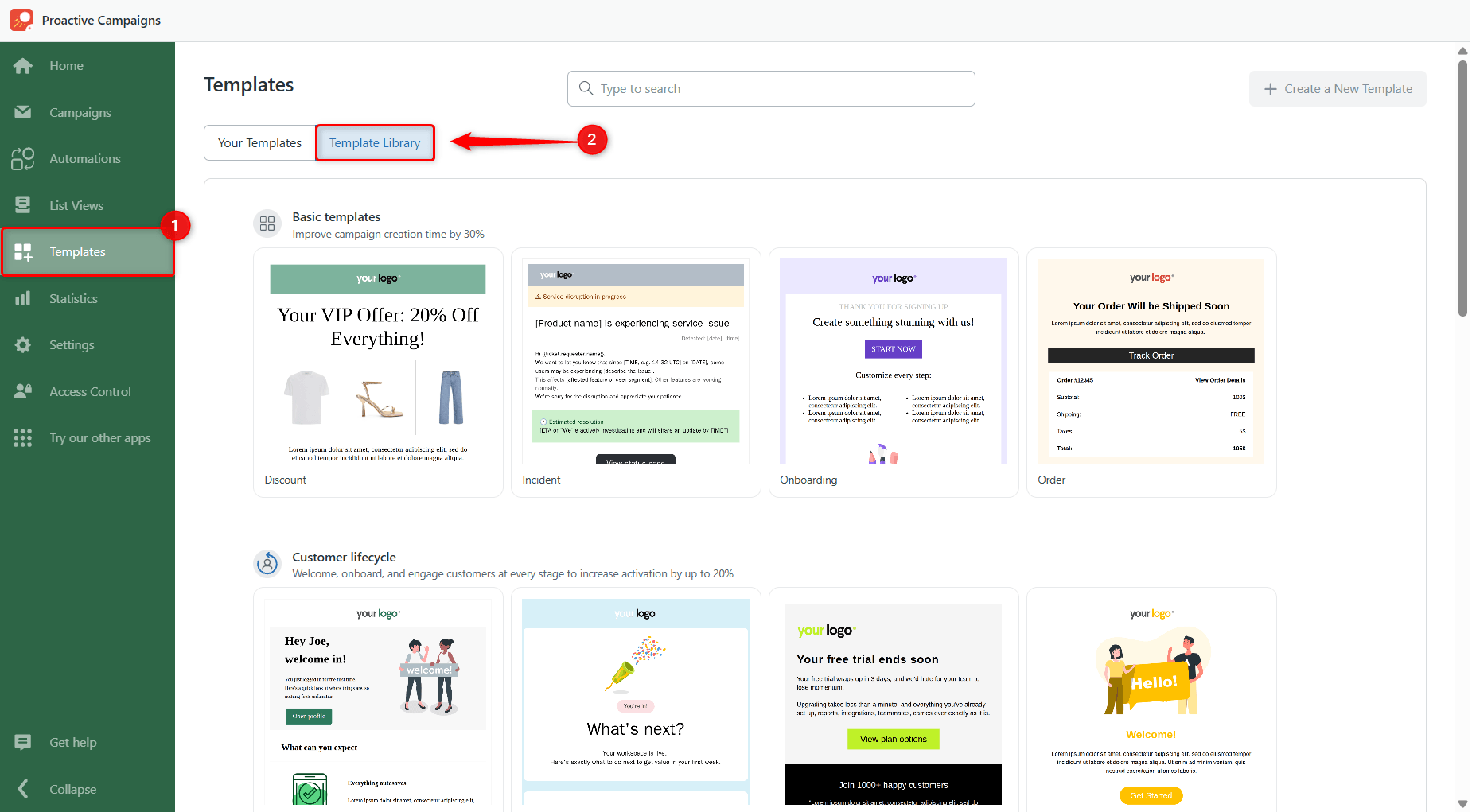
Templates are organized into themed packs to help you find the right starting point faster. You can browse templates for:
- Customer lifecycle
- Incident management
- Customer notifications
- Internal communications
- Promotions
Choose a template that fits your use case.
How to Use a Template from Library
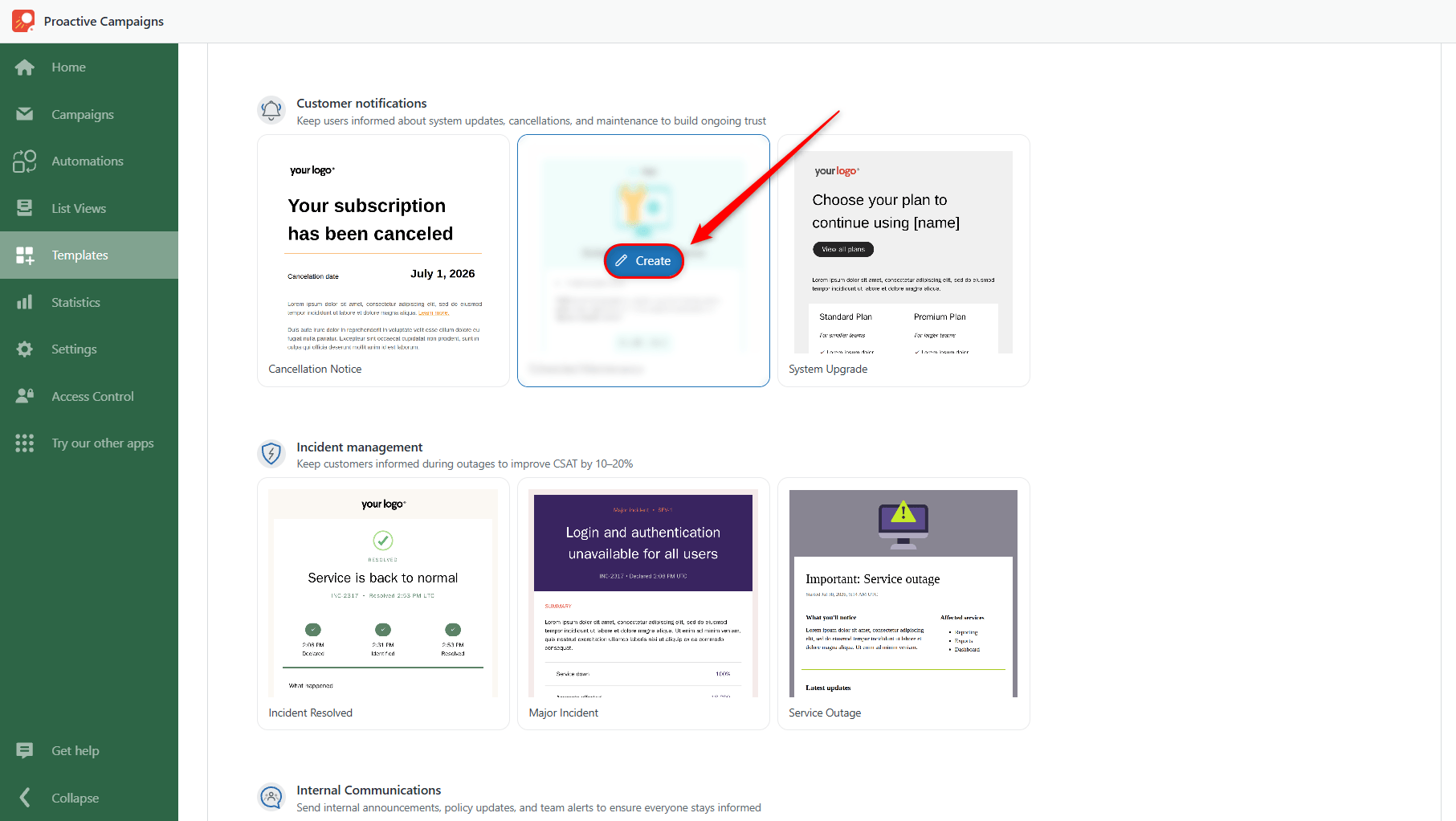
Step 1: Find the template you want to use.
Step 2: Hover over the template and click Create.
Step 3: Customize the template to match your message.
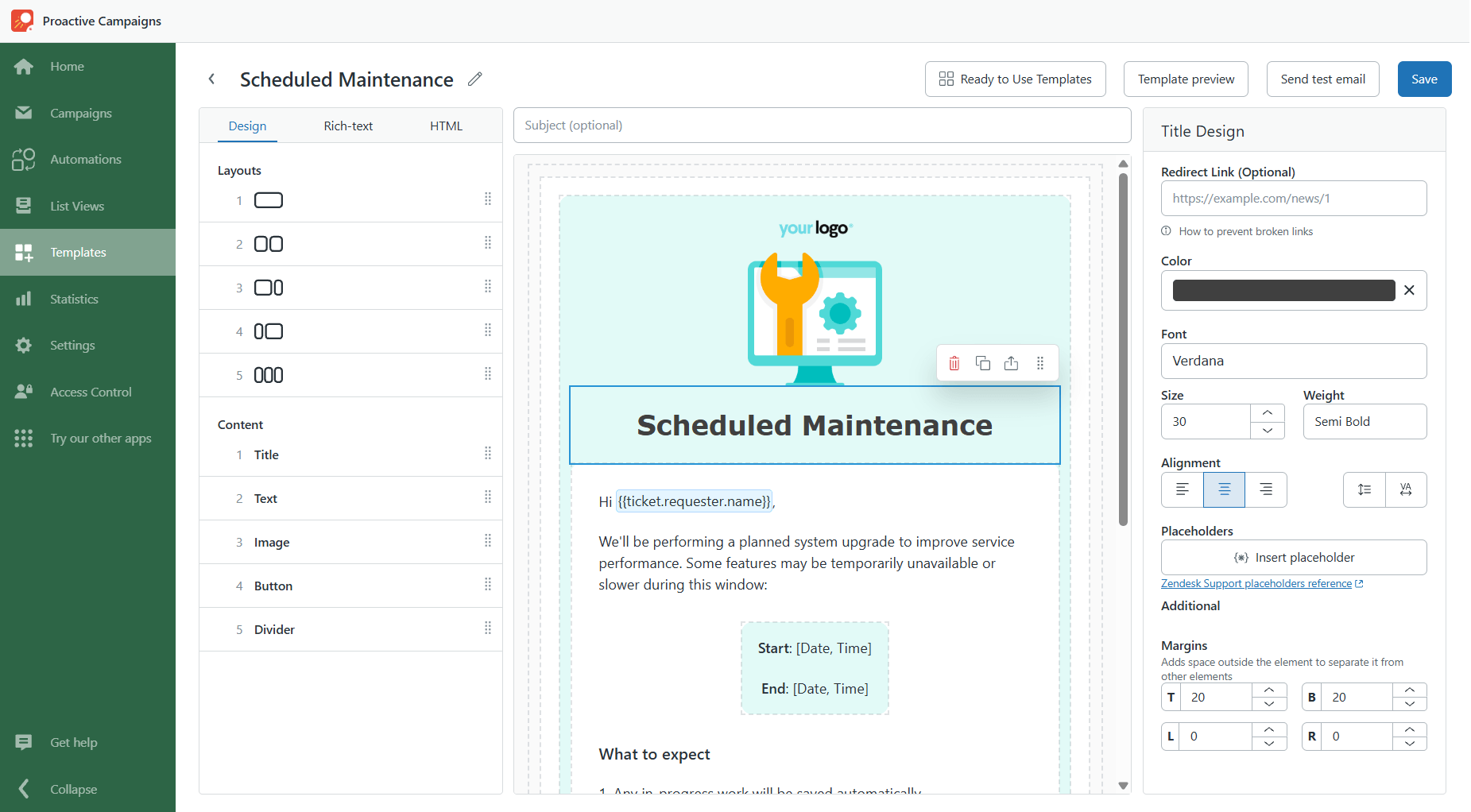
Step 4: Give the template a name and click Save.
Step 5: When creating a campaign, select the saved template from your templates.
Who Can Access the Template Library
Template Library access depends on your Proactive Campaigns plan:
- Enterprise: Includes unlimited access to the full Template Library and all available template packs.
- Pro: Includes 4 templates for discounts, onboarding, orders, and general communications.
- Lite: You can explore the available templates, but using them requires an upgrade to Pro or Enterprise.
For more information, see our Proactive Campaigns pricing.