How to exclude a user from an automation when they reply in Proactive Campaigns
-
Proactive Campaigns

Automated email campaigns in Proactive Campaigns help you engage customers efficiently. However, if your automation goal is to get a reply from your customer, you don’t want the system to continue sending follow-up emails after they have already responded.
For example, if a customer replies to the first email in a three-step sequence, you don’t want the second and third emails to be sent.
In this guide, we will show you how to automatically exclude a user from an email sequence when they reply, keeping your communication relevant and timely.
Step 1: Create a user field for automation exit
First, create a checkbox field in the user profile that will act as a control for your campaign.
In your Zendesk instance, navigate to Admin Center > People > Configuration > User fields and add a new field. We’ll suggest creating a Checkbox field type and title it Exit from automation.
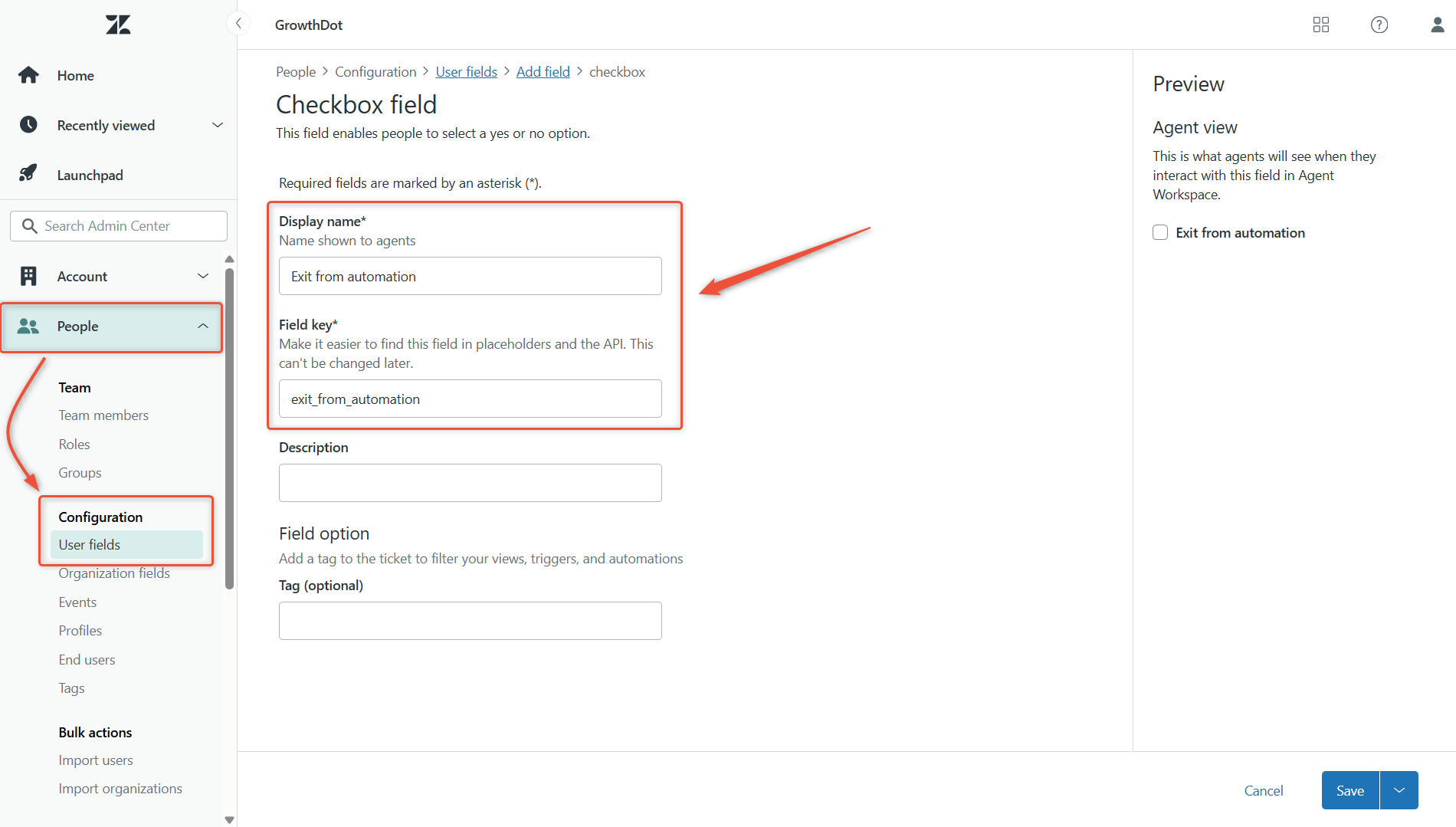
This field acts as a stop signal. When checked, the user will automatically be removed from the campaign.
Step 2: Update the automation user list
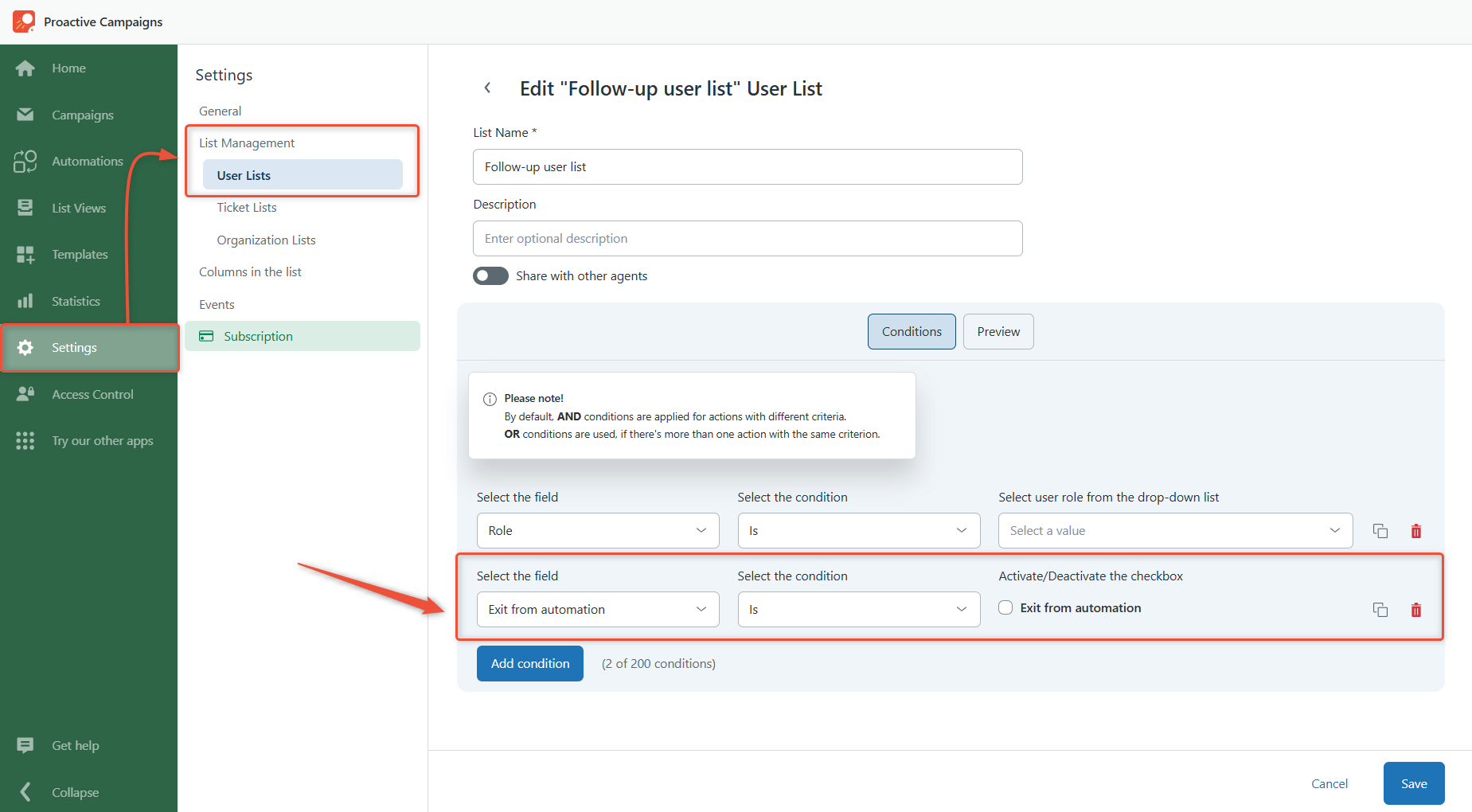
Next, create or update a user list inside Proactive Campaigns: Settings > List Management > User Lists.
Besides your regular segmentation rules (dates, tags, other fields), add a condition to include only users where the Exit from automation checkbox is unchecked.
Step 3: Set up the campaign automation
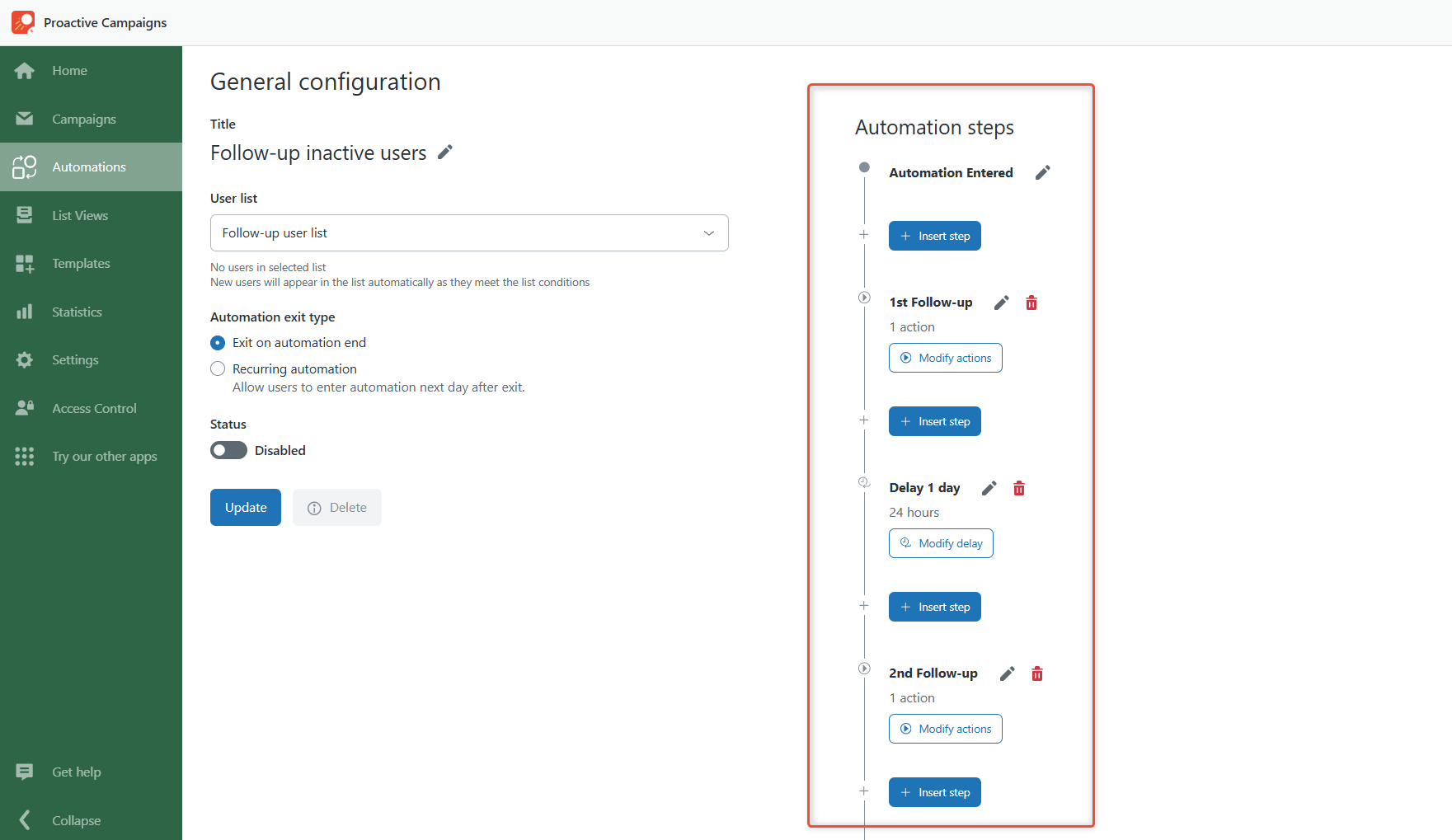
Create or edit your Proactive Campaign automation with the desired sequence of emails and delays.
Important: Each delay between emails must be at least 2 hours, giving Zendesk enough time to process replies and update user fields before the next email is sent.
Step 4: Identify the automation ID
After saving the campaign, check the URL in your browser. The number at the end is the automation ID. Proactive Campaigns automatically adds a tag to tickets created from this campaign: pc_automation_[ID]
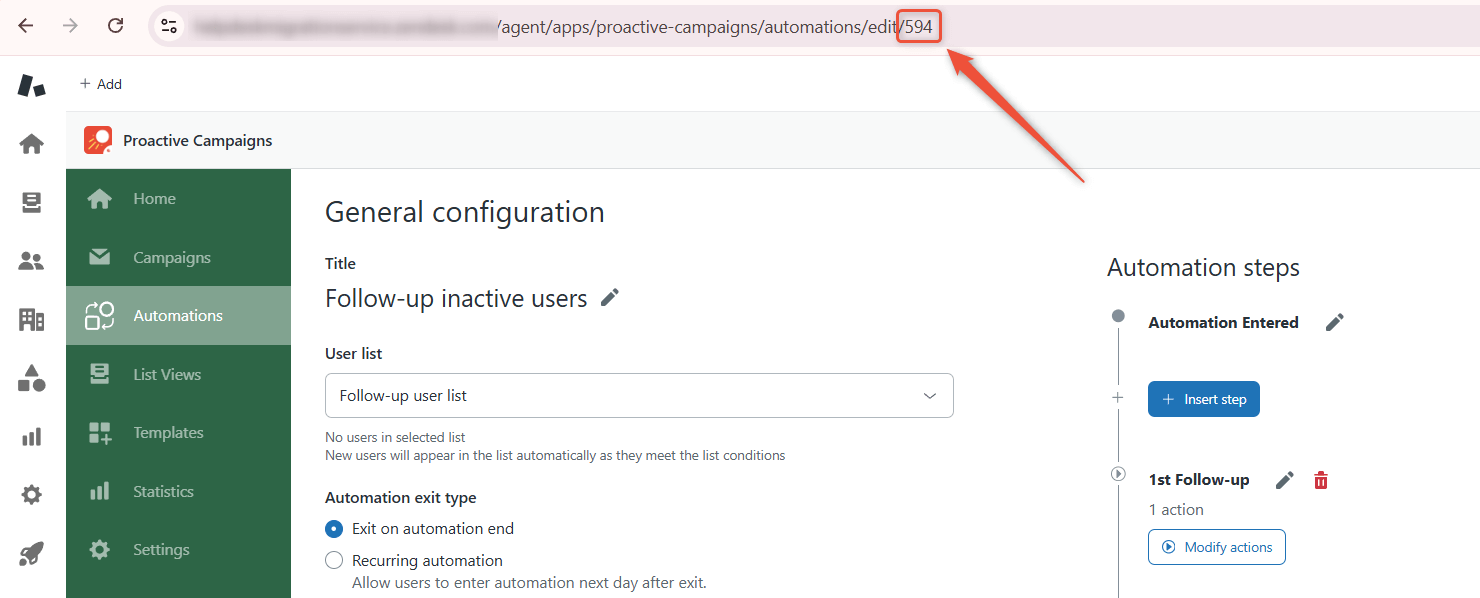
pc_automation_594This tag will be used in the trigger to identify tickets from this specific campaign.
Step 5: Create a trigger to detect customer replies
Create a trigger in Zendesk that detects when a customer replies to a campaign email and automatically adds a tag to the ticket.
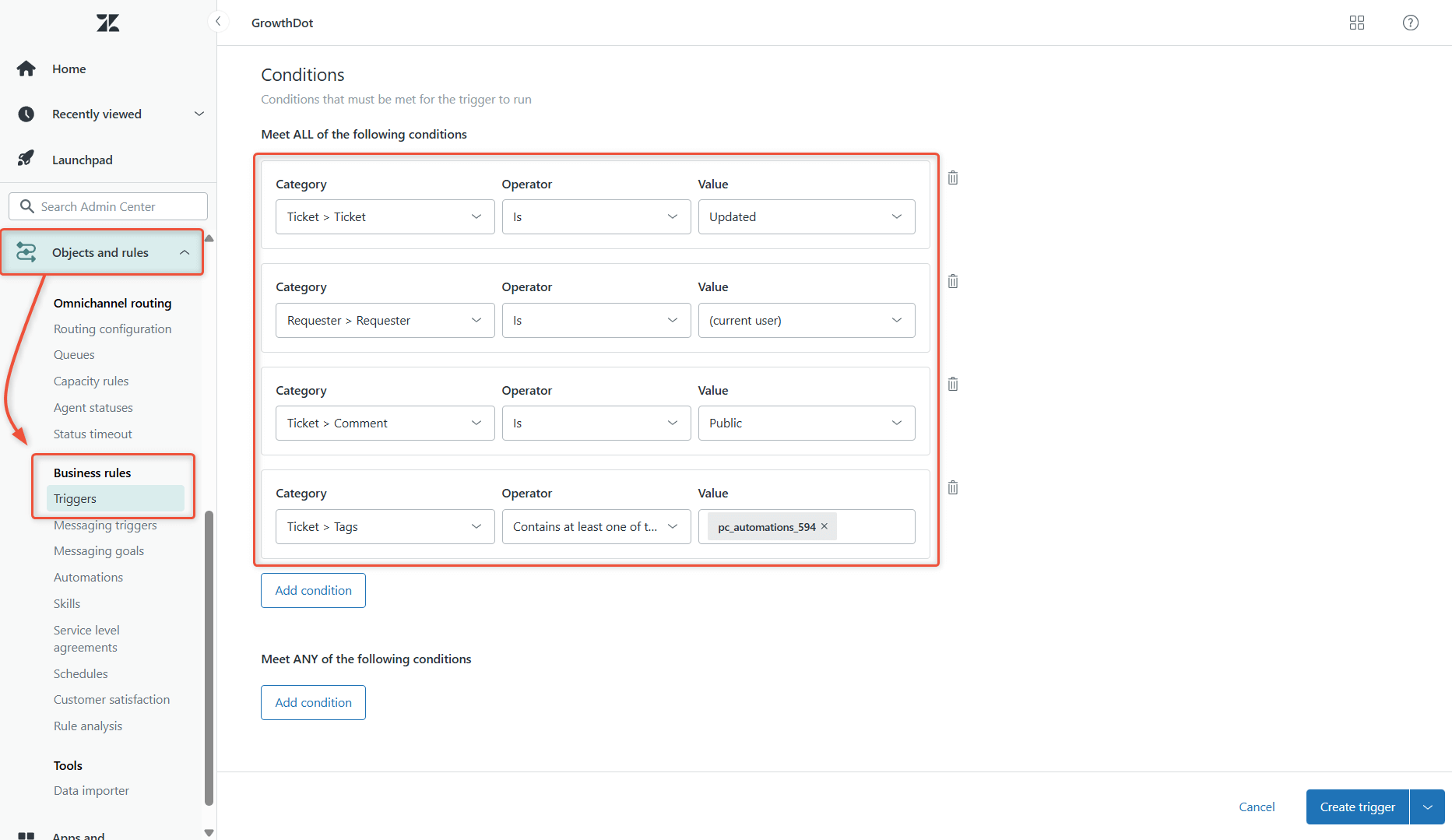
Go to Admin Center > Object and rules > Business rules > Triggers > Create trigger.
Under Meet ALL of the following conditions, add the conditions shown in the screenshot. The last condition includes a tag from the specific automation we discussed above.
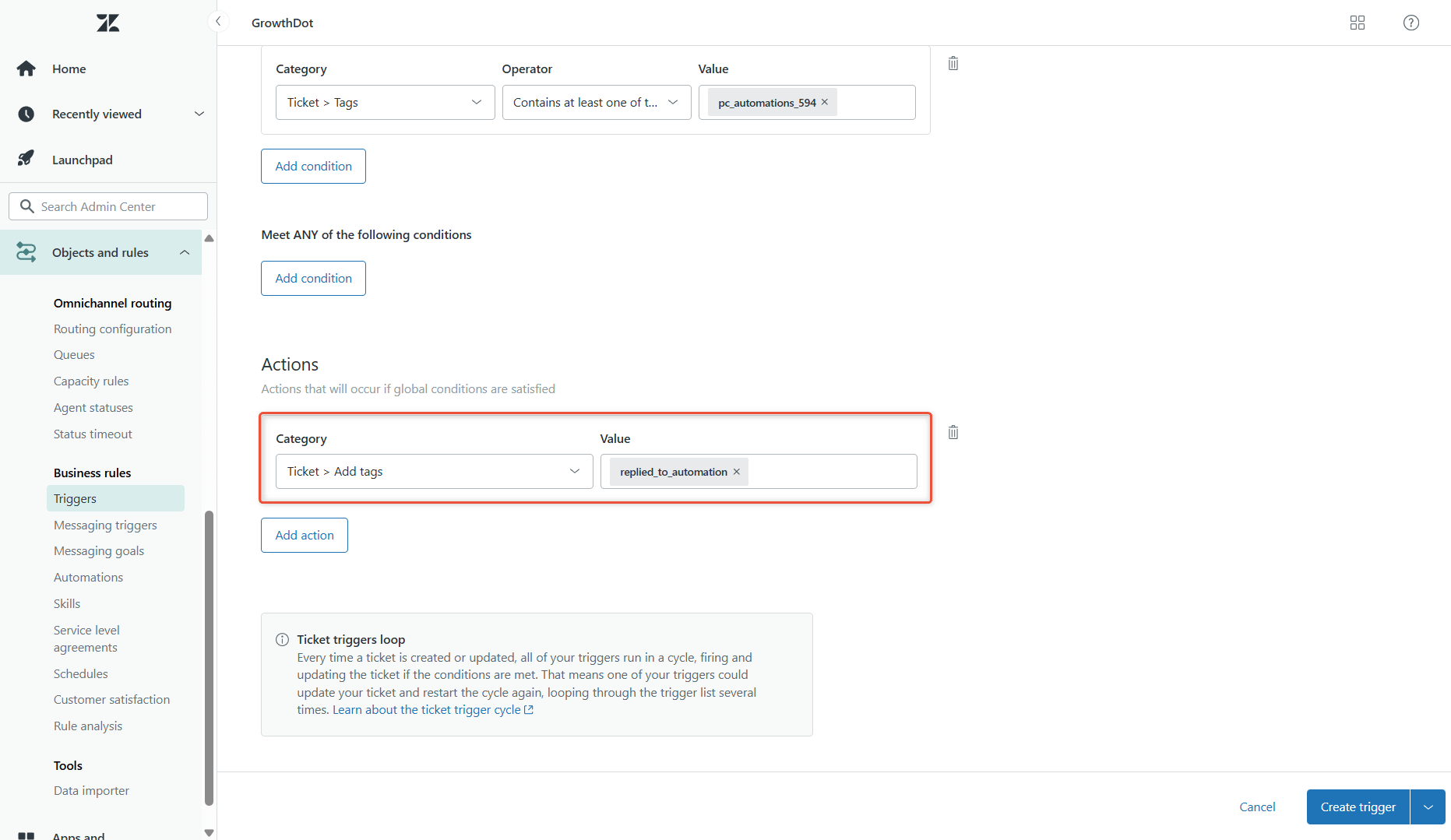
Set the action for the trigger to Add tags to the ticket, for example: replied_to_automation. This tag signals that the customer has replied and allows your automation to update their user profile accordingly.
Step 6: Create an automation to update the user field
Create a Zendesk automation that responds to tickets with the replied_to_automation tag.
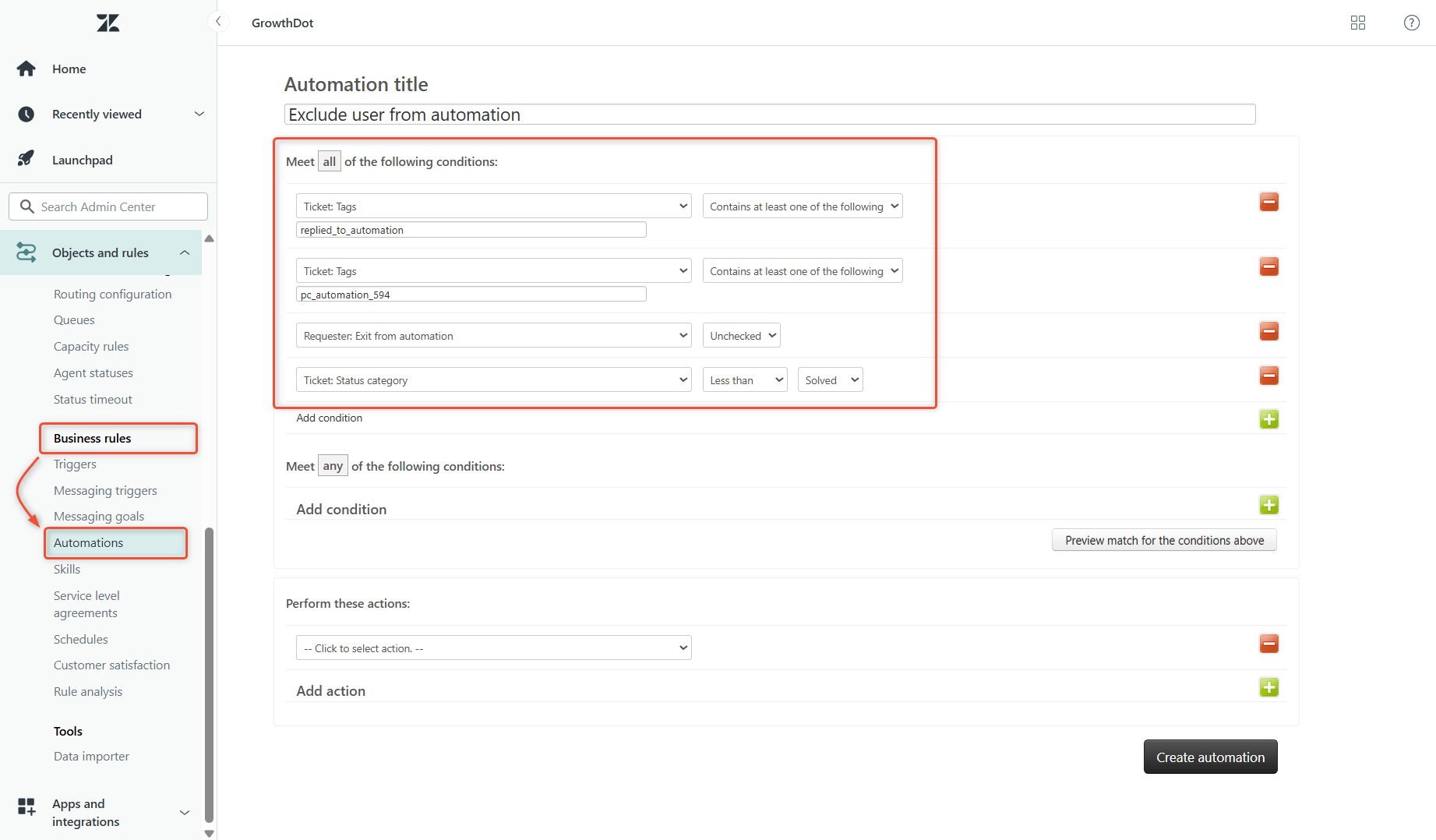
In the same Business rules sections, go to Automations and click Add automation.
Under Meet all of the following conditions, add conditions from the screenshot:
For the action, set the automation to check the Exit from automation checkbox in the requester’s profile and click Create automation.
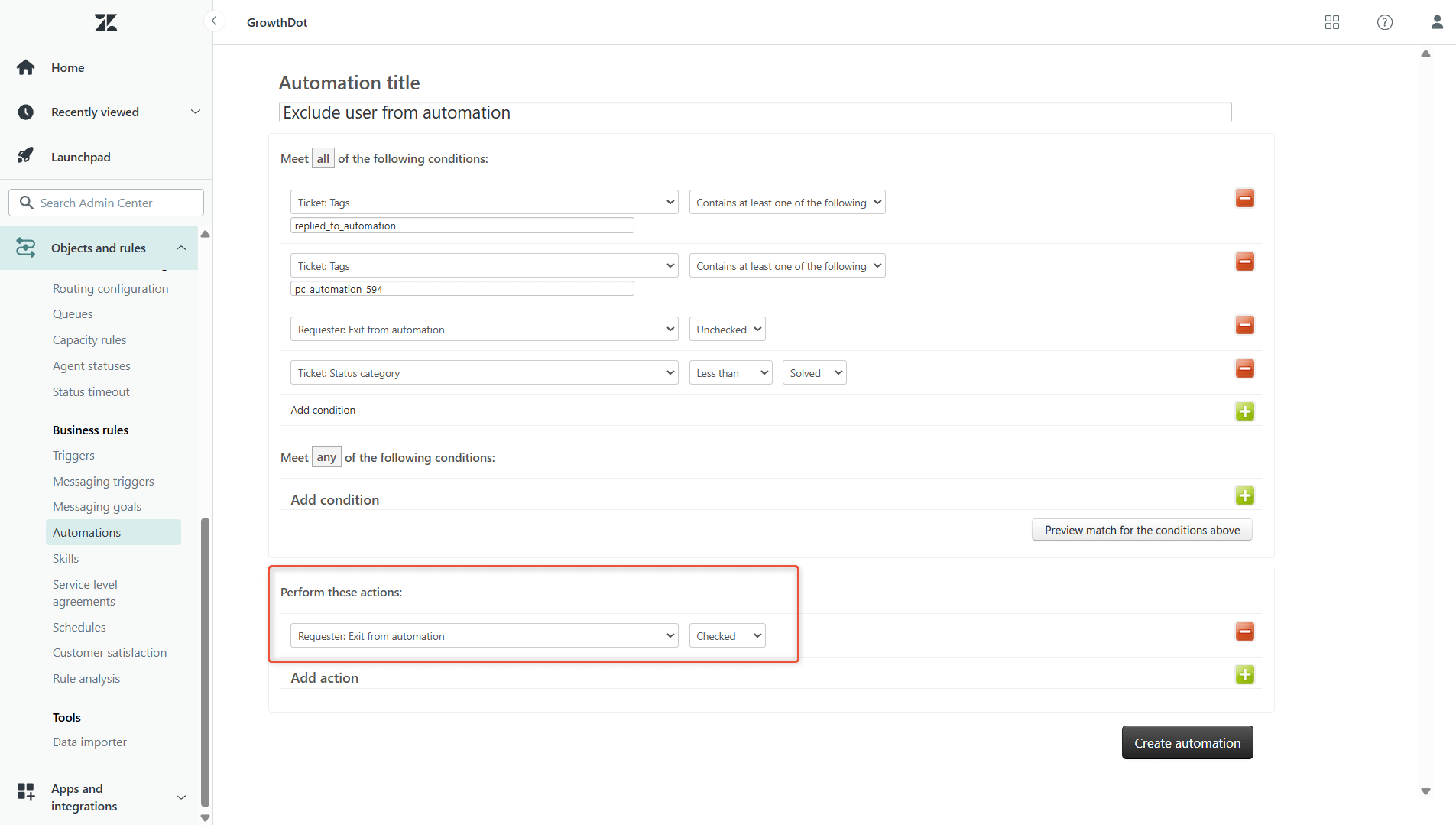
Once this is updated, the user is removed from the campaign list and will no longer receive emails.
Step 7: Activate an email automation
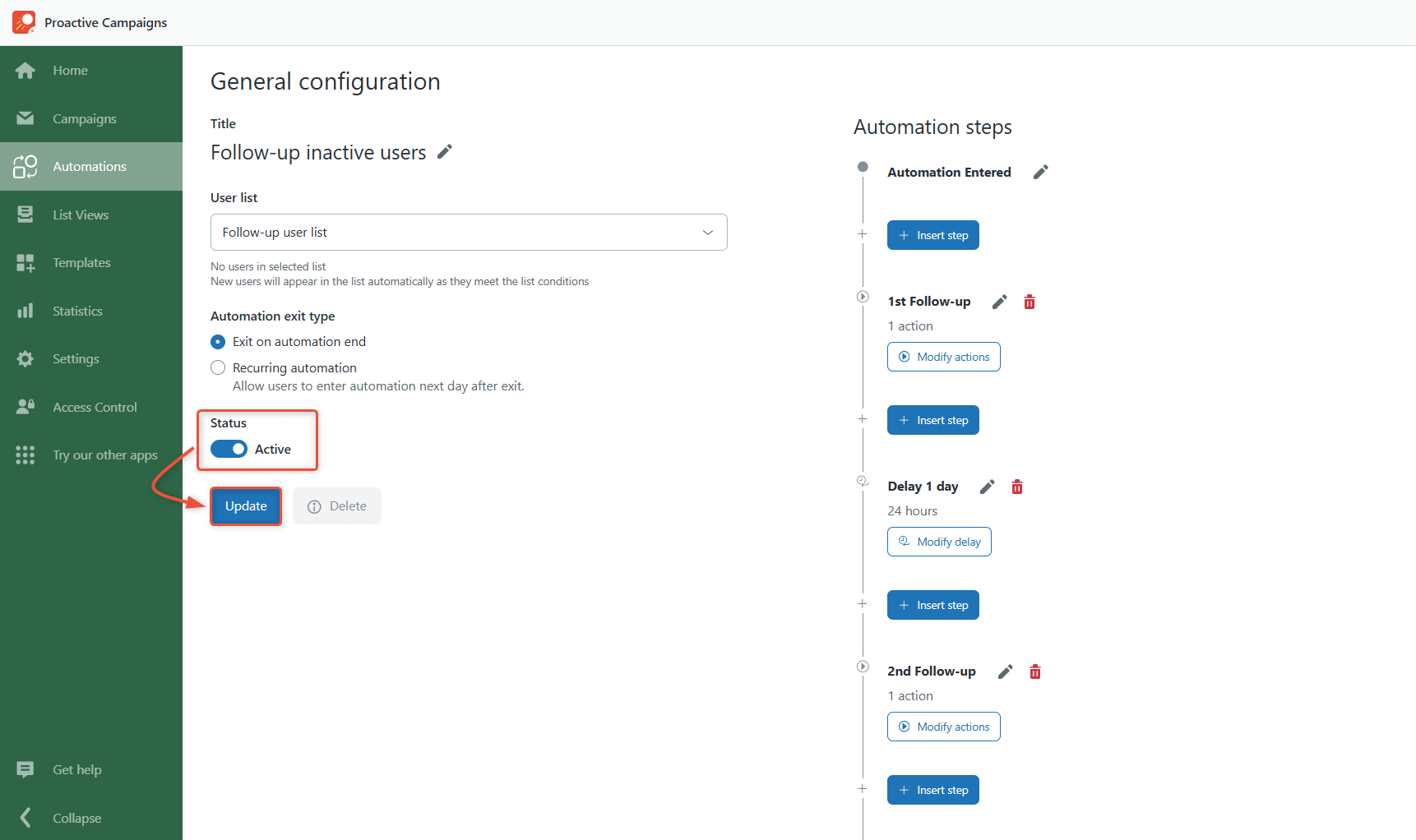
After ensuring that both the trigger and automation are created, go back to your email automation in the Proactive Campaigns app, toggle on the button to activate it, and click Update.
The result
After completing this setup, your Proactive Campaign will automatically stop sending emails to any user who replies. The flow works by detecting the reply, tagging the ticket, updating the user’s profile, and removing them from the campaign list.
This ensures that your campaigns remain relevant, avoid duplicate follow-ups, and allow your team to focus on meaningful conversations with engaged customers.