When a campaign reaches more and more customers, managing it becomes harder. Often, the problem is that you need to assign emails to different teams or agents.
Imagine sending a thousand emails, all of which create tickets in your helpdesk, and then going through each ticket to change the assignee one by one. It’s slow, boring, and easy to make mistakes.
With the Proactive Campaigns app for Zendesk, you don’t have to do that anymore. You can include assignee groups and agents in your CSV contact file. When the campaign is sent, tickets are automatically routed to the right team or person. Everything happens as the campaign runs, and you don’t spend hours fixing assignments afterward.
Why Structured Data Dramatically Boosts Campaign Performance
Common scenario: You send a campaign to, for example, 2,000 customers. Replies start coming in, questions, unsubscribes, maybe even complaints. Tickets appear in Zendesk, and suddenly, half of them need to go to different teams or agents. You start reassigning each ticket individually.
Common outcome: It takes hours. Mistakes happen. Some tickets sit untouched.
The better way: Make each message assigned to the right person beforehand, before even clicking Run campaign.
Why it works:
- Each ticket lands in the right queue automatically. Teams don’t waste time moving tickets around.
- Agents see only the tickets they should handle, so follow-ups happen faster and more accurately.
- Managers get a clear view of who is handling what without cleaning up assignments.
- Large or segmented campaigns scale without extra work, because the system already knows who should handle each ticket.
All of this becomes possible by using CSV uploads in Proactive Campaigns for Zendesk. By including assignee groups and agents in your contact file, tickets are routed automatically as soon as the campaign is sent.
Next, let’s see how this compares to the old way of working (manually reassigning tickets) and what changes when you use CSV automation.
Manual vs. CSV Automation: The Real Difference
We already showed you the common scenario: a campaign goes out, tickets pile up in Zendesk, and someone has to reassign them one by one. That approach takes hours and leaves room for mistakes.
There is another way to organize this work using a CSV file when creating an email campaign.
Instead of reacting to tickets after they appear, you prepare the structure in advance. Each contact in the file already carries the information the system needs: who should handle the reply, how the ticket should look, and where it should go.
The difference becomes obvious once replies start coming in.
- With a manual setup, agents first sort tickets, change assignees, add tags, and adjust priorities. Only then do they respond.
- With a CSV-based setup, tickets arrive already shaped. They land in the right queue, with the right owner and context, and agents can focus on replying instead of organizing.
This shift matters most when campaigns grow. The more tickets you create, the more manual steps slow things down. CSV automation removes those steps by moving the work earlier in the process, when it’s easier to control and much harder to mess up.

Automate ticket assignments and focus on replies, not sorting.
Try CSV automationThat’s why structured data isn’t just about saving time. It changes when and how the work happens — and that’s what makes large campaigns easier to manage.
Practical Uses for CSV Ticket Assignment in Zendesk
Once you move ticket setup earlier in the process, some use cases stand out right away. These are situations where manual assignment usually breaks down, especially when campaigns grow or become more complex.
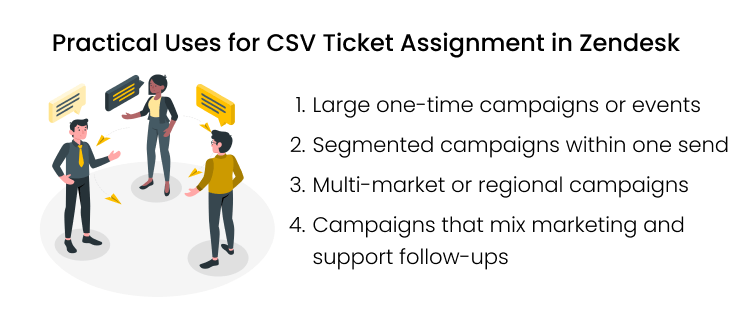
Large one-time campaigns or events
Think product launches, service changes, or policy updates sent to thousands of customers at once. Replies often come in waves, and they are not all the same. Some customers ask questions, some report issues, and others just want confirmation.
With a CSV upload, you can decide in advance which team should handle which type of response. When replies arrive, tickets are already routed. There is no bottleneck and no first-hour chaos after the campaign is sent.
Segmented campaigns within one send
Many campaigns target different customer groups at the same time. Free users, paid customers, and enterprise accounts often need different follow-up paths.
Instead of splitting this into multiple campaigns or fixing assignments later, the CSV file can reflect those segments. Each row can point to a different group or agent. The campaign goes out once, but the follow-up work is divided automatically.
Multi-market or regional campaigns
When campaigns span countries or regions, routing becomes harder. Time zones, languages, and local teams all matter.
A CSV upload allows you to assign tickets based on region before sending anything. European replies go to the EU team. US replies go to the US team. Agents start their day with tickets that actually belong to them.
Campaigns that mix marketing and support follow-ups
Some campaigns generate sales interest, others create support questions. Often, they generate both.
By structuring the contact file properly, replies can be split between sales and support without manual sorting. This avoids delays and keeps customers from being passed around internally.
Across all of these cases, the pattern is the same. The more variation you expect in replies, the more value you get from preparing assignments in advance. CSV uploads make that preparation possible without adding complexity to the campaign itself.
Next, we’ll look at how this setup fits into a real workflow inside Zendesk.
How This Works in Proactive Campaigns for Zendesk
All of the examples above (large events, segmented campaigns, multi-market sends, mixed follow-ups) work in practice thanks to CSV imports in Proactive Campaigns for Zendesk.
The Proactive Campaigns app is built around a simple idea: campaigns should be easy to send, but also easy to manage. That’s why teams can upload a CSV file when setting up a campaign. This file becomes the structure behind the campaign, and most importantly, it determines who handles each ticket before a single message is sent.
Here’s how it works in a typical workflow:
1. Prepare the CSV file
Along with required customer details such as name and email, include columns for Assignee Group and Assignee Email. Each contact can be mapped to the team or agent that should handle their ticket.
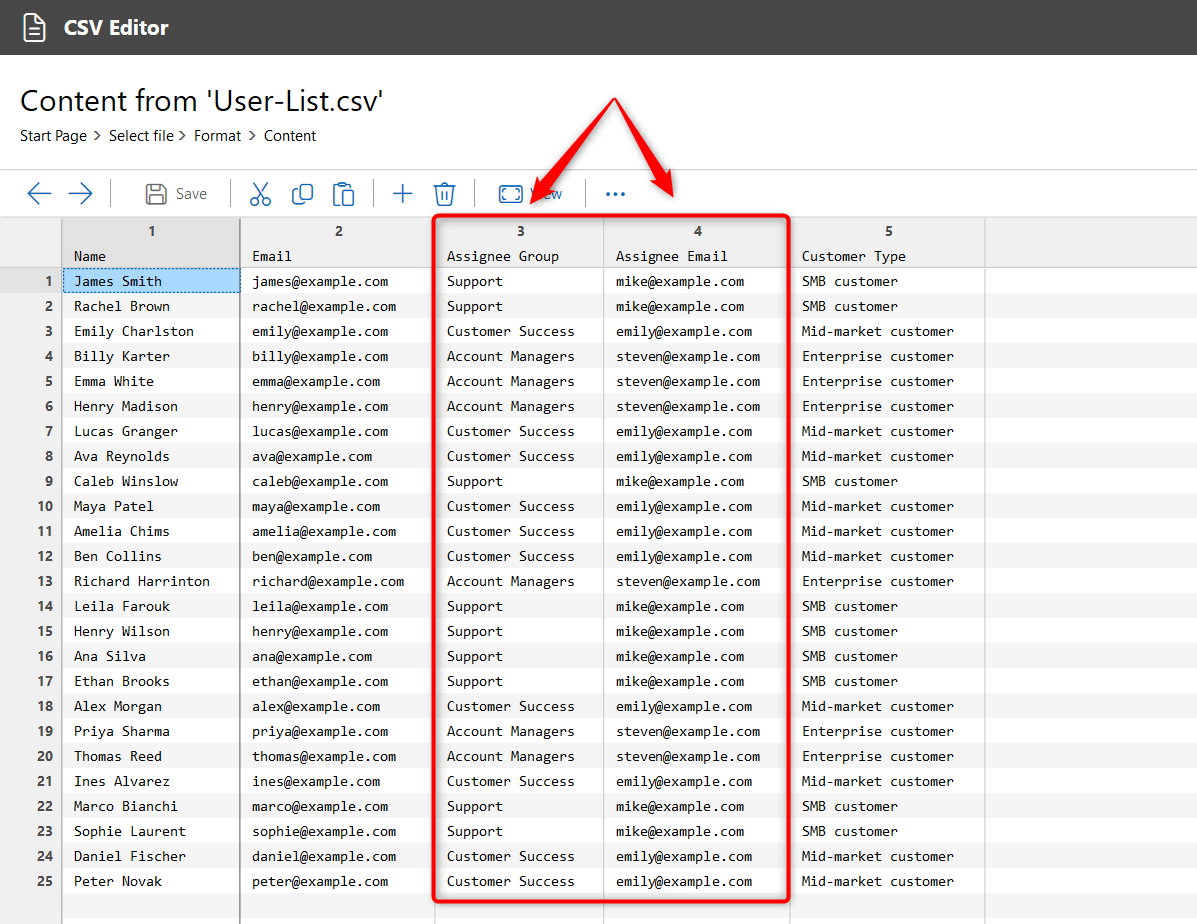
You can also add additional columns for any specific user or ticket field to capture extra context, like priority, tags, or custom fields.
2. Upload your file
Open the Proactive Campaigns app in Zendesk and create a new campaign. On the first step, select Import User List and choose your CSV file.
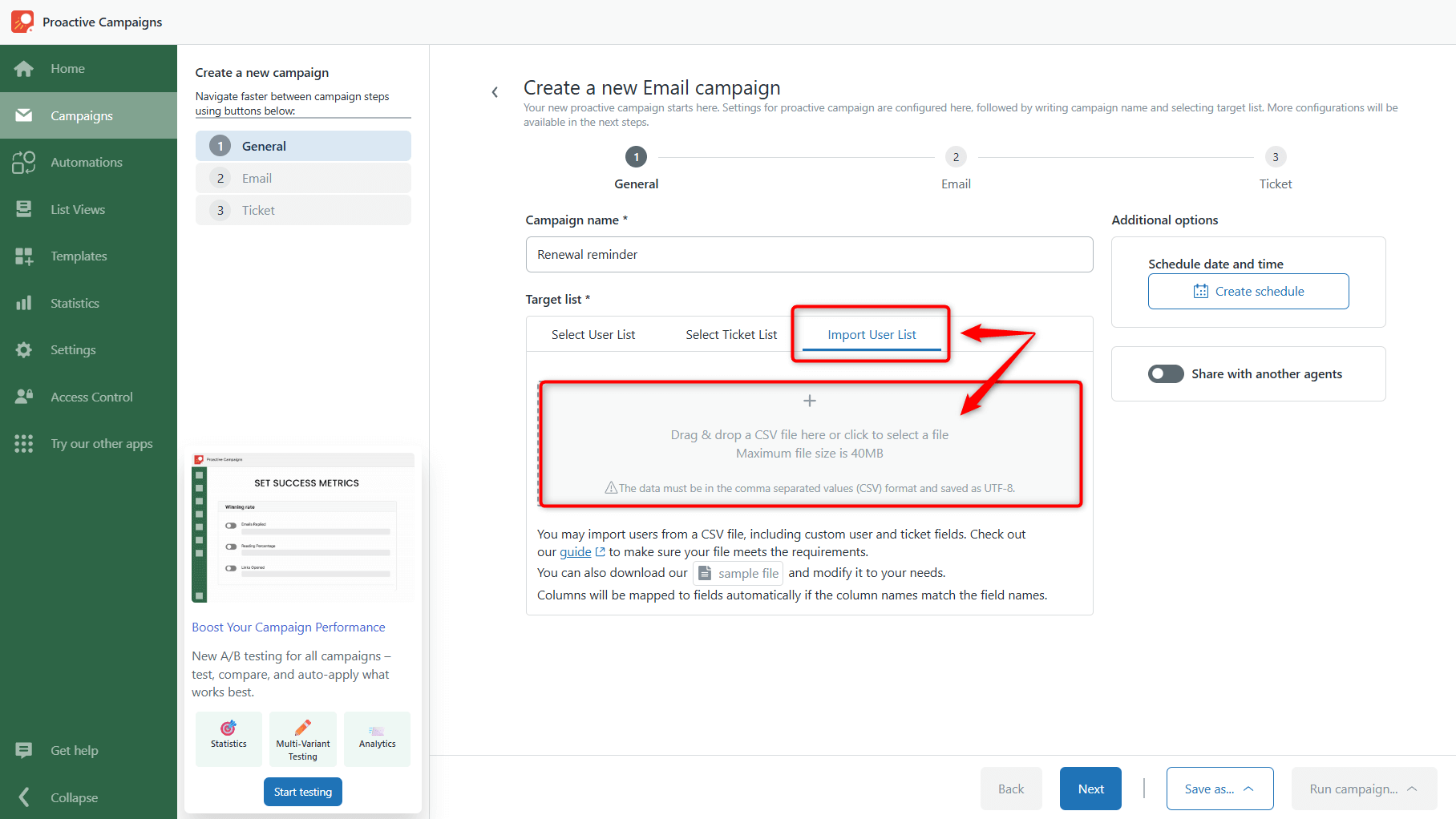
3. Map the columns to Zendesk fields
After importing, a modal window will appear showing the columns. Most of the time, columns are automatically mapped if their names match Zendesk fields. If not, map them manually using the drop-down menus.
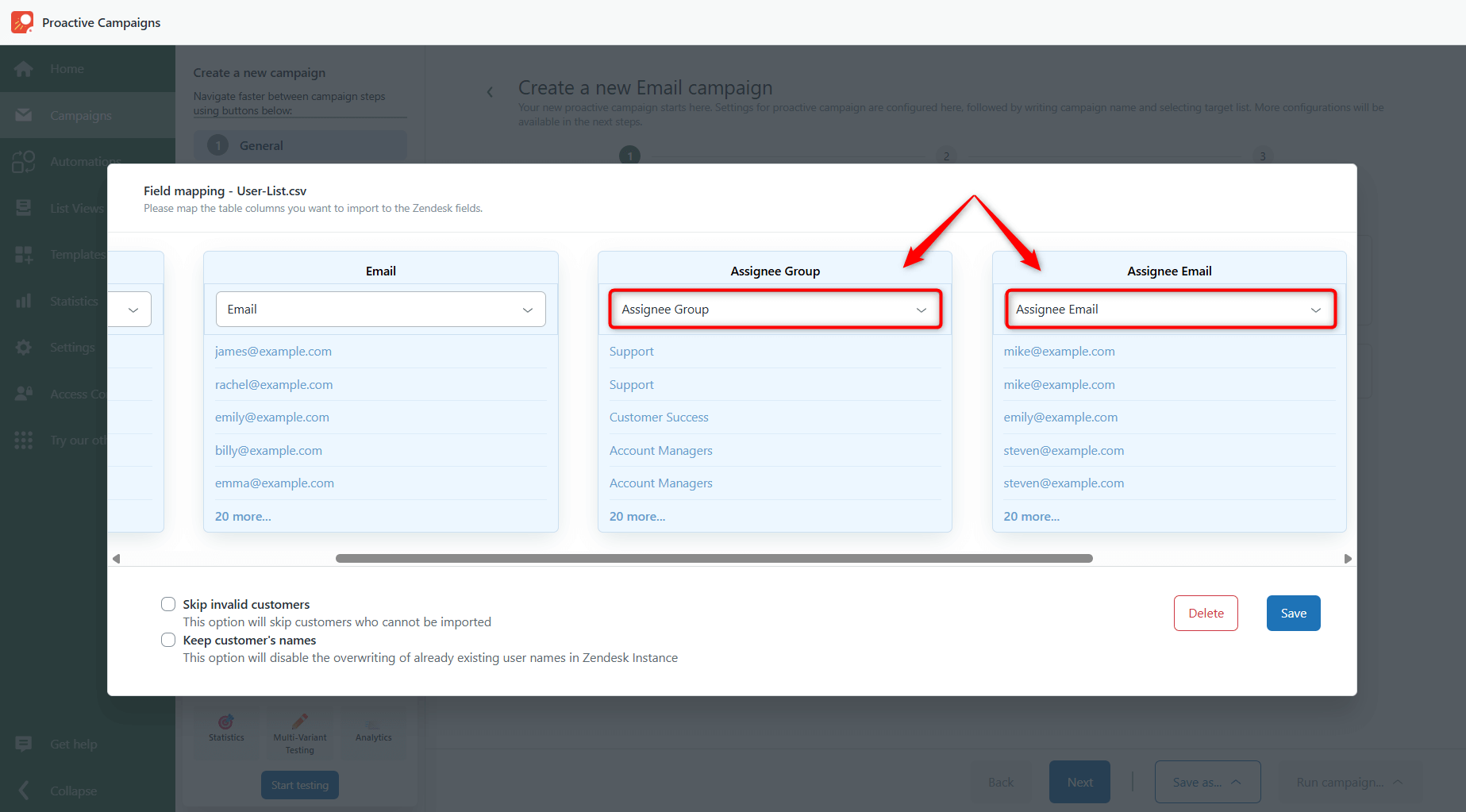
4. Proceed with campaign creation
After mapping, continue setting up your campaign as usual by creating your email template. The last step of campaign setup includes ticket configuration, so here you can see your imported assignees and other fields.
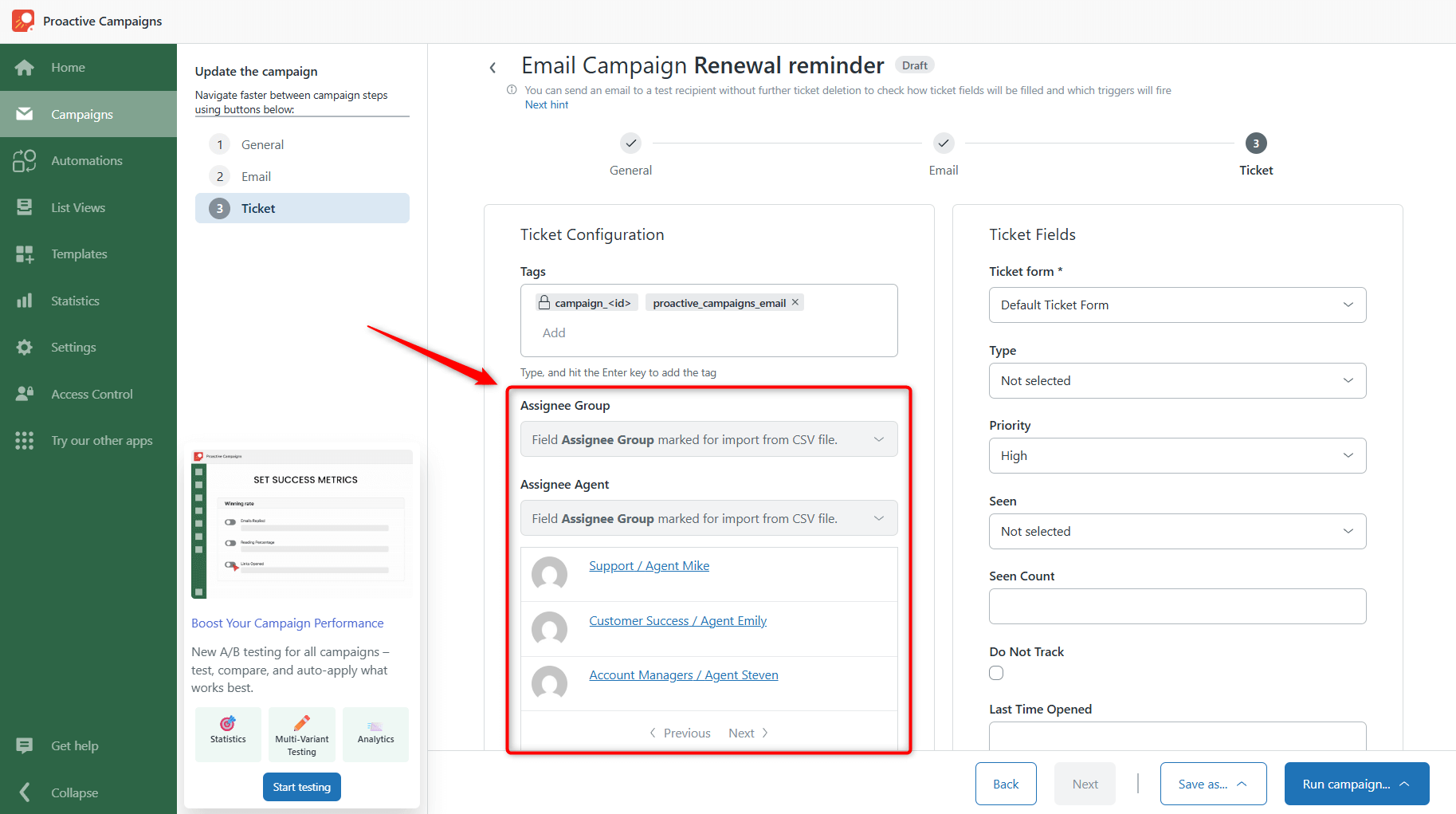
5. Send the campaign and let the workflow work
Once sent, tickets start appearing in Zendesk fully structured. Agents see only the tickets assigned to them. Managers can immediately see who is handling what. Follow-ups happen faster, and the manual reassignment step disappears.
Best Practices for CSV Assignment
Once you understand how CSV uploads work in Proactive Campaigns, following a few best practices helps ensure assignments run smoothly:
- Keep your CSV clean and structured – Make sure customer details, assignee groups, and agent emails are correct and consistent. Errors in the file can create misrouted tickets.
- Map fields carefully during import – Double-check that each column in your CSV is connected to the right Zendesk field. This avoids confusion and ensures tickets are assigned as intended.
- Verify group and agent assignments for new campaigns – Before sending a large campaign, quickly scan the assignments to make sure everything lines up. This prevents delays or misrouted tickets.
- Combine assignee fields with priority or segment fields – For smarter routing, use CSV columns not just for assignees, but also for priorities, tags, or customer segments. This allows tickets to be automatically organized by importance, team, or region.
Following these steps keeps campaigns organized from the start.
Conclusion
Large or complex campaigns don’t have to create chaos in Zendesk. By organizing contacts in a CSV, you can assign tickets to the right teams or agents before the campaign even goes out. This ensures replies are handled quickly, reduces errors, and keeps workflows organized.
When assignments are planned upfront, campaigns scale smoothly, agents can focus on customers, and managers get a clear picture of activity without manual cleanup.
In short, structured data turns a potentially overwhelming process into a simple, manageable, and efficient workflow. So, give it a try and upload your first CSV in the Proactive Campaigns app for Zendesk now!
FAQs
How can I automatically assign tickets in Zendesk for large campaigns?
By using the Proactive Campaigns app with a structured CSV file, you can assign tickets to the right agents or groups before sending a campaign, eliminating manual reassignment.
What should be included in a CSV for Proactive Campaigns ticket assignment?
Include customer details like name and email, along with columns for Assignee Group, Assignee Email, and optional fields like priority, tags, or custom ticket fields.
Can I manage segmented campaigns with CSV uploads in Zendesk?
Yes. CSV files can reflect customer segments, regions, or types of responses, ensuring tickets are routed automatically to the correct team or agent.
How does CSV automation improve campaign efficiency?
It reduces manual steps, prevents errors, ensures tickets reach the right agents immediately, and allows teams to focus on responding rather than organizing.