Troubleshooting Installation Error in GDPR Compliance App: “Error creating requirements.”
-
GDPR Compliance

When installing the GDPR Compliance app from the Zendesk Marketplace, you may encounter the following message: “Failed to install app: Error creating requirements.”
This issue typically occurs when Zendesk detects an existing custom field with the same name as the one the app needs to create automatically.
Below is a quick explanation of the issue and the steps to resolve it.
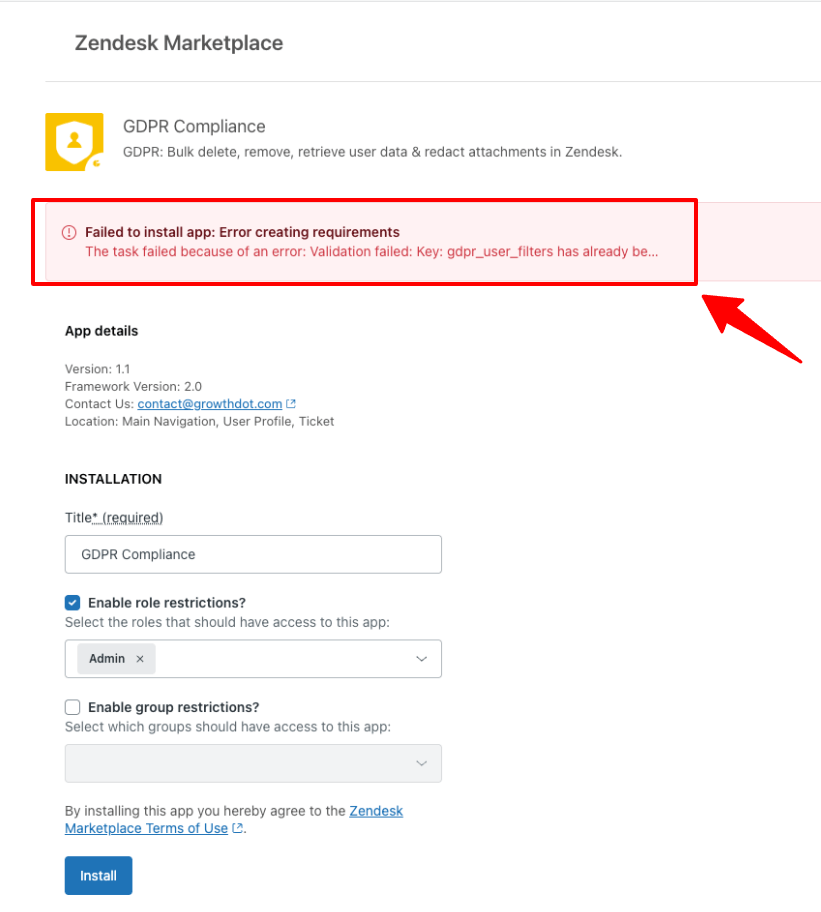
Why This Error Appears
The GDPR Compliance app creates several required fields during installation.
One of these is:
gdpr_user_filters
1. Locate the Existing Field
-
Go to Admin Center → Objects and Rules → Tickets → Fields.
-
Search for a field named
gdpr_user_filters.
2. Delete or Rename the Field
If you find this field:
-
Delete it (recommended), or
-
Rename it if you need to keep it for another purpose.
Deleting the field will not affect the GDPR Compliance app. It will recreate the field automatically during installation.
3. Reinstall the App
Return to the Zendesk Marketplace, open the GDPR Compliance app page, and reinstall it. The installation should now be complete without errors.
If this field already exists in your Zendesk instance, Zendesk will prevent the app from creating the new one, resulting in the installation error. Often, it can be created from a previous installation, a test setup, or a manually created custom field.
Once the conflicting field is removed, the app should install normally.
For example, removing the field resolved the issue, and you can run GDPR Compliance successfully on their sandbox environment.
Still Experiencing Issues?
If the error persists or you need assistance removing fields, feel free contact our support team. We’re always happy to help!