Why are my messages sent from Zendesk not being tracked?
-
Email Tracking

If your outgoing emails from Zendesk are not being tracked, please follow the steps below to identify the issue.
Check Which Trigger Sent the Email
1. Open the ticket that was not tracked, as shown in the screenshot below.
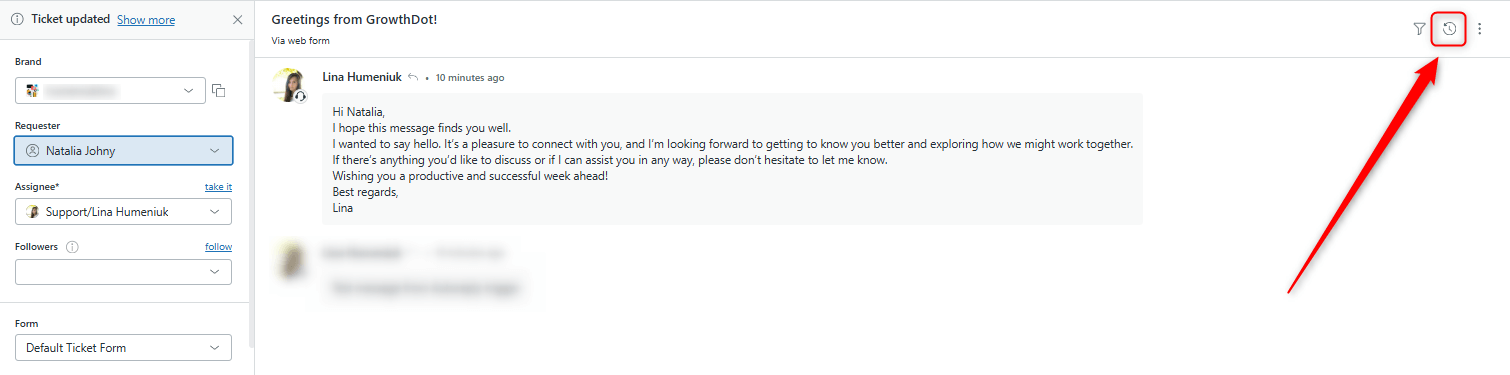
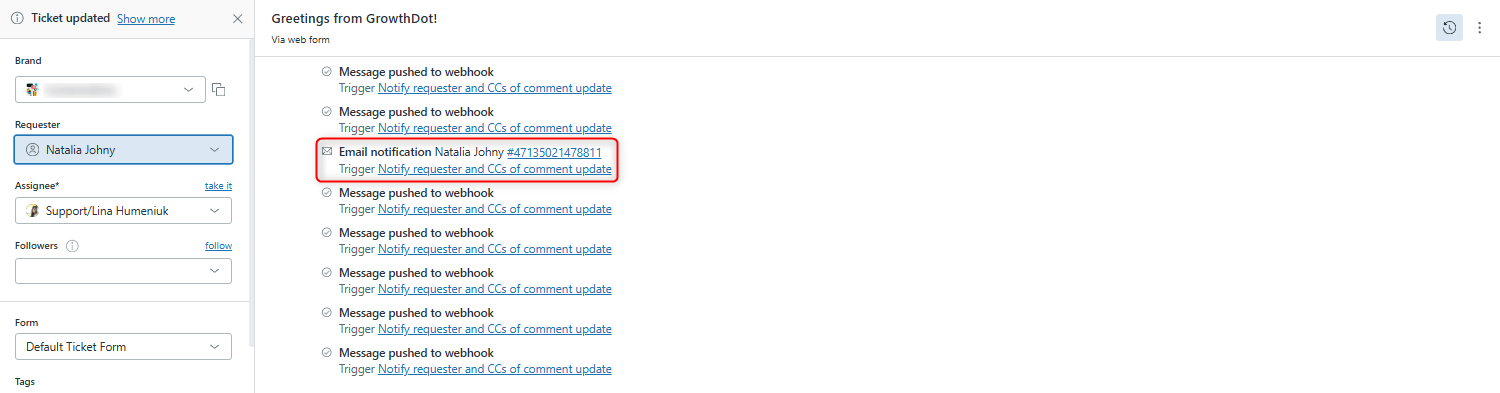
2. Go to the Events tab within the ticket and identify which trigger sent the email notification. Tracking works only if the specific trigger that sent the email is enabled in your tracking settings.
Verify Email Tracking Settings
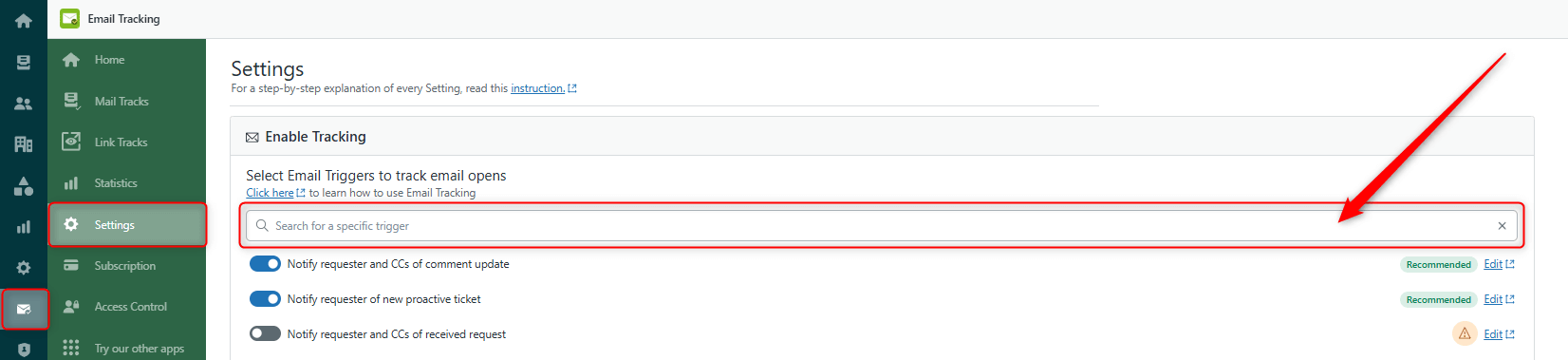
Open Email Tracking Settings in the app and check whether the trigger identified in the previous step is enabled for tracking. If the trigger is disabled, enable tracking for that trigger and test again.
Allow Time for Tracking to Update
Please note that it may take up to 5 minutes for Zendesk to refresh the ticket and display email tracking information after the recipient opens the message. If the email has been read, but tracking is not visible immediately, wait a few minutes and refresh the ticket.
Still Not Working?
If: The trigger is enabled for tracking, and more than 5 minutes have passed since the email was opened. Please contact our support team and provide the ticket ID. We will review the case and assist you further.